
Running a Google Tag Manager server container on a VPS gives you control over the tagging endpoint, DNS, TLS and updates. It does not guarantee delivery through content blockers or a particular Safari cookie lifetime. Treat first-party routing as a way to control and inspect measurement, while respecting the visitor’s choices.
This guide builds a small Ubuntu 24.04 test deployment with separate tagging and Preview services behind Caddy. One VPS is a single point of failure; validate your actual workload before using it for business-critical campaigns. The examples are source-checked configuration, not a measured performance test.
Plan access, capacity and consent
Start with a clean Ubuntu 24.04 VPS, a public IP address, a sudo-enabled SSH account, and permission to manage DNS and a GTM Server container. Reserve gtm.example.com for collection and preview.example.com for debugging. Replace these example names throughout the files below.
Use a VPS size that leaves room for the operating system, proxy and two processes. Event rate alone cannot determine capacity: tag templates, outbound calls and bursts change the workload. Google recommends at most one vCPU per tagging-server instance; multiple instances are the scaling unit. The Compose example caps each GTM process at one CPU, which is distinct from the VPS’s total CPU allocation.
Define which events and fields each destination may receive before enabling collection. Document your consent implementation and retention choices. Server-side processing does not replace the site’s consent solution. For the wider infrastructure context, see HostStage’s self-hosted analytics guide.
Separate tagging traffic from Preview
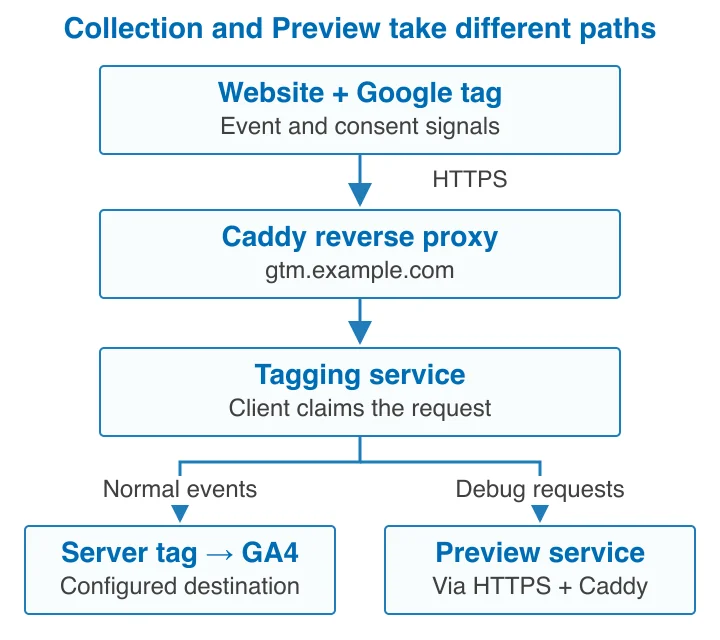
The public tagging endpoint receives requests. A server-container client interprets the incoming format, and configured tags send permitted event data to destinations. Preview is a separate service used for debugging; it is not a second destination for normal collection. The tagging service forwards preview requests to it over the configured HTTPS URL.
In your GTM Server container workspace, open the container ID and choose Manually provision tagging server. Copy the complete CONTAINER_CONFIG string. A visible ID such as GTM-ABC1234 is not this value. Both services use the same configuration; only Preview sets RUN_AS_PREVIEW_SERVER=true, and only tagging sets PREVIEW_SERVER_URL.
Keep exactly one Preview instance. If a CDN or load balancer sits in front, its timeout must exceed 20 seconds for Preview. These relationships and the health endpoint below follow Google’s manual provisioning guide, checked 2 November 2026. The diagram shows service relationships, not traffic volume or guaranteed delivery.
Prepare Ubuntu and install Docker
Connect with your actual username and server address. Use a fresh host for this example; review any existing Docker installation and conflicting packages against Docker’s Ubuntu instructions before changing them.
ssh your-user@YOUR_SERVER_IP
sudo apt update
sudo apt upgrade
Install Docker from its signed repository, including the Compose plugin and DNS tools:
sudo apt install ca-certificates curl dnsutils
sudo install -m 0755 -d /etc/apt/keyrings
sudo curl -fsSL https://download.docker.com/linux/ubuntu/gpg -o /etc/apt/keyrings/docker.asc
sudo chmod a+r /etc/apt/keyrings/docker.asc
sudo tee /etc/apt/sources.list.d/docker.sources > /dev/null <<EOF
Types: deb
URIs: https://download.docker.com/linux/ubuntu
Suites: $(. /etc/os-release && echo "${UBUNTU_CODENAME:-$VERSION_CODENAME}")
Components: stable
Architectures: $(dpkg --print-architecture)
Signed-By: /etc/apt/keyrings/docker.asc
EOF
sudo apt update
sudo apt install docker-ce docker-ce-cli containerd.io docker-buildx-plugin docker-compose-plugin
Verify that Docker is running:
sudo docker version
sudo docker compose version
sudo systemctl is-active docker
Permit SSH before enabling a firewall, keep your current session open, and confirm a second SSH connection works. The OpenSSH profile assumes the default port; adapt it if you use another port. Permit public TCP 80 and 443 for Caddy.
sudo ufw allow OpenSSH
sudo ufw allow 80/tcp
sudo ufw allow 443/tcp
sudo ufw enable
sudo ufw status numbered
Docker-published ports can bypass UFW rules. In the stack below, only Caddy publishes host ports; neither GTM service maps port 8080 to the host. Check any provider firewall as well. HostStage’s Docker and SSL deployment guide provides related application-hosting context.
Connect DNS and deploy the HTTPS stack

Create these records at the authoritative DNS provider. Use your VPS’s real IPv4 address, not an example address shown in contextual artwork.
| Record | Target |
|---|---|
| A: gtm | VPS IPv4 address |
| A: preview | Same VPS IPv4 address |
Add AAAA records only when IPv6 routing and firewall access work. A CNAME target must be a hostname, not an IP address. Check both names before starting the proxy:
dig +short gtm.example.com A
dig +short preview.example.com A
Both answers should match the intended address. A low TTL helps later changes but does not promise instant cache expiry. A subdomain is a first-party context; it is not the same origin as the website. Google describes the alternatives in its custom-domain guide.
Create a private working directory and configuration file. Replace the placeholder with the generated GTM value; do not publish the file or expanded Compose output.
mkdir -p ~/sgtm
cd ~/sgtm
umask 077
cat > .env <<'EOF'
CONTAINER_CONFIG='PASTE_THE_COMPLETE_GENERATED_CONFIGURATION_HERE'
EOF
chmod 600 .env
Save the complete following file as compose.yaml in that directory. Replace the Preview hostname. The private Docker network lets Caddy address each service by its service name.
services:
  tagging:
    image: gcr.io/cloud-tagging-10302018/gtm-cloud-image:stable
    restart: unless-stopped
    cpus: 1.0
    environment:
      CONTAINER_CONFIG: "${CONTAINER_CONFIG:?Set CONTAINER_CONFIG in .env}"
      PREVIEW_SERVER_URL: "https://preview.example.com"
    expose:
      - "8080"
    logging:
      driver: local
  preview:
    image: gcr.io/cloud-tagging-10302018/gtm-cloud-image:stable
    restart: unless-stopped
    cpus: 1.0
    environment:
      CONTAINER_CONFIG: "${CONTAINER_CONFIG:?Set CONTAINER_CONFIG in .env}"
      RUN_AS_PREVIEW_SERVER: "true"
    expose:
      - "8080"
    logging:
      driver: local
  caddy:
    image: caddy:2
    restart: unless-stopped
    depends_on:
      - tagging
      - preview
    ports:
      - "80:80"
      - "443:443"
    volumes:
      - ./Caddyfile:/etc/caddy/Caddyfile:ro
      - caddy_data:/data
      - caddy_config:/config
    logging:
      driver: local
volumes:
  caddy_data:
  caddy_config:
Save the following as Caddyfile beside it, replacing both hostnames:
gtm.example.com {
    reverse_proxy tagging:8080
}

preview.example.com {
    reverse_proxy preview:8080
}
Caddy’s automatic HTTPS needs correct DNS, reachable ports, and persistent writable certificate storage. Its reverse proxy forwards to the internal service ports. If the host cannot reach its own public Preview hostname, fix routing or firewall behavior before relying on Preview.
Validate without printing the expanded configuration, then launch:
sudo docker compose config --quiet
sudo docker compose up -d
sudo docker compose ps
Use the documented /healthy path for both services:
curl --fail --show-error -i https://gtm.example.com/healthy
curl --fail --show-error -i https://preview.example.com/healthy
Expect HTTP 200 from each. This checks the serving path, not analytics delivery. A failed request needs DNS, certificate, firewall, proxy and service checks; inspect bounded logs locally:
sudo docker compose logs --tail 50 tagging preview caddy
Verify browser events and consent
In GTM Server → Admin → Container Settings, set the Server container URL to https://gtm.example.com. Keep or configure the GA4 client, then create the server-side GA4 tag and the intended trigger. Receiving a request does not automatically forward it to Analytics.
In your website’s existing Google tag, set the configuration parameter server_container_url to the same URL. If you manage the tag directly with gtag.js, update its existing configuration rather than adding a second copy:
gtag('config', 'G-XXXXXXXXXX', {
  server_container_url: 'https://gtm.example.com'
});
Replace G-XXXXXXXXXX with your own Google tag ID. This routing parameter does not by itself serve all Google scripts from your hostname. Review Google’s data-routing instructions and the site’s Content Security Policy if requests are blocked.
Open both Web and Server Preview. Trigger a test event after making the intended consent choice. Follow it in the browser Network panel, the server client and tag, and the destination’s debugging tools. Repeat with consent denied and withdrawn; inspect cookies and outgoing requests rather than assuming the same result for every tag.
| Observation | Next check |
|---|---|
| No browser request | Web trigger, consent, CSP and blocker |
| Request unclaimed | Server client and request format |
| No outgoing event | Tag trigger, mapping and destination |
| Duplicate event | Parallel browser/server collection |
Google’s consent-mode documentation explains how preferences travel from the web tag to consent-aware Google server tags. Basic and advanced modes behave differently when consent is denied; inspect your chosen implementation. Community templates need their own permission and data-handling review. Publish your GTM changes only after the complete path behaves as intended.
A custom hostname cannot guarantee immunity from blocking. WebKit’s CNAME defense also demonstrates why a first-party-looking address is not a promise of unrestricted cookie storage. Do not claim that this setup defeats ITP. Test supported browsers and respect explicit visitor choices.
Maintain the endpoint and plan recovery
Monitor both health endpoints, HTTP errors, response times, CPU, memory, disk and restarts against your own traffic baseline. A running container may still be unhealthy, and a restart policy is not an external health monitor. Do not infer an events-per-second limit from a VPS product specification.
Use controlled update windows. Preserve the previous image references, configuration and a rollback plan before fetching newer images. The following commands update the stack; on a single host, recreation can interrupt collection:
cd ~/sgtm
sudo docker compose pull
sudo docker compose up -d
sudo docker compose ps
Retest Preview and a complete consent-aware event afterward. Google requires updating both the Preview and tagging images. Keep only one Preview service when adding tagging instances, and use a load balancer plus separate failure domains if availability during host failure matters. Merely increasing the CPU allocation of one tagging process is not the same as adding instances.
Back up Compose and Caddy configuration and protect the environment file. Retain Caddy’s persistent volumes and document DNS, access ownership and recovery steps. GTM keeps the tag configuration, while you remain responsible for this unmanaged host. Load-test representative events and templates before a campaign; no universal request rate or data-recovery percentage is established by this guide.
Frequently asked questions
Do I need Google Cloud to run server-side GTM?
No. Google supports manually provisioning its Docker image in other environments. A VPS supplies the runtime, networking and TLS; it does not create or configure your server-container tags for you.
Why are there two GTM services?
Tagging handles incoming collection traffic, while Preview supports debugging. They share the generated container configuration but have different environment settings. An unreachable Preview URL can break debugging even when normal collection works.
Why does /healthy work while GA4 receives nothing?
Health confirms the service can respond. Check whether the browser sends the event to your hostname, the server client claims it, and the intended tag forwards it. Check consent and destination configuration at each stage.
Will this recover every blocked event or extend every cookie?
No. Browser rules, extensions, consent choices and the event implementation still apply. Verify behavior on the browsers you support and do not treat server-side routing as permission to override a visitor’s choice.
Can I use one VPS for production?
You can run the services together, but one host remains a failure point and its capacity must be tested. For workloads that cannot tolerate host maintenance or failure, design redundant tagging instances and recovery before launch.