
This guide explains how to install MT4 and MT5 on a VPS, keep them running continuously, and configure settings to minimize execution lag. For tips on selecting the right hardware, consider reading about the best VPS server for MT4 to ensure your trading runs smoothly.
Step 1: Choose the Right VPS Plan for MetaTrader
A VPS’s specifications determine key performance factors such as the number of Expert Advisors (EAs) you can run simultaneously, the speed at which your charts and indicators update, and the efficiency of backtesting. For most MT4/MT5 setups, CPU and RAM play a larger role than disk storage, which is primarily used for platform files, logs, and historical data.
For instance, a configuration of 2 vCPU and 4 GB RAM efficiently handles one terminal with several charts and a handful of light EAs. As you expand to multiple terminals or load heavier indicators and optimization tasks, CPU availability becomes the main consideration.
For more detailed information on planning your resources, see Forex VPS Specs.
The takeaway: live traders generally need a VPS with dedicated CPU and RAM to avoid lags during market spikes.
Estimate Your EA Resource Requirements
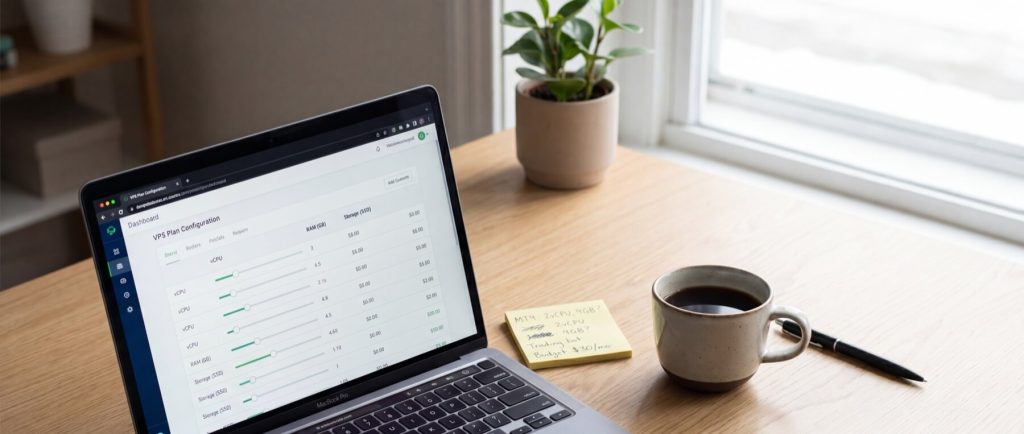
A useful rule of thumb is planning for one CPU core per 3–5 basic EAs if you’re primarily live trading. More complex setups using multi-symbol scanning, custom indicators, or frequent recalculations should adjust these estimates. During backtesting, resource usage can spike, so consider the additional load accordingly. For setups ranging from 1–3 light EAs to heavy MT5 testing, use the following framework:
- 1–3 light EAs, one terminal, basic charts: 1 vCPU / 2 GB RAM
- 3–8 EAs, one or two terminals, moderate indicators: 2 vCPU / 4 GB RAM
- 8–15 EAs, several charts, some testing: 4 vCPU / 8 GB RAM
- Heavy MT5 testing, multiple terminals, optimizer workloads: 6+ vCPU / 12+ GB RAM
If latency is critical for strategies like scalping or news trading, choose a VPS location near your broker’s trade server. Even an extra 1,000 km might add roughly 10–20 ms delay. For further guidance, refer to Best VPS Location for Your Forex Broker.
Step 2: Provision Your VPS in the Control Panel
Deploy a Windows VPS in the region nearest your broker’s trading server to simplify the installation of MT4/MT5 and reduce network delays before orders are sent. Follow these steps in your control panel:
- Open Dashboard
- Go to Products
- Select Order VPS
- Choose your VPS plan
- Select Windows Server
- Pick the server region
- Review billing cycle and total
- Confirm the order
Choosing Windows Server is recommended for MetaTrader, as both MT4 and MT5 are native Windows applications. Although running them on Linux using Wine is possible, it may lead to update or compatibility issues.
For example, HostStage offers Windows VPS plans such as the KITTEN plan, priced at $15.95 per month, which comes with 2 vCPU, 2 GB DDR4 ECC RAM, and 30 GB NVMe storage across regions including America, Europe, Africa, and Asia.
Before submitting your order, verify the operating system, selected region, billing term, and any hostname or password details to avoid later complications. After payment, you will receive an order confirmation email with essential VPS details, including the server IP address, administrator username, and initial password instructions.
Step 3: Connect to Your VPS via Remote Desktop
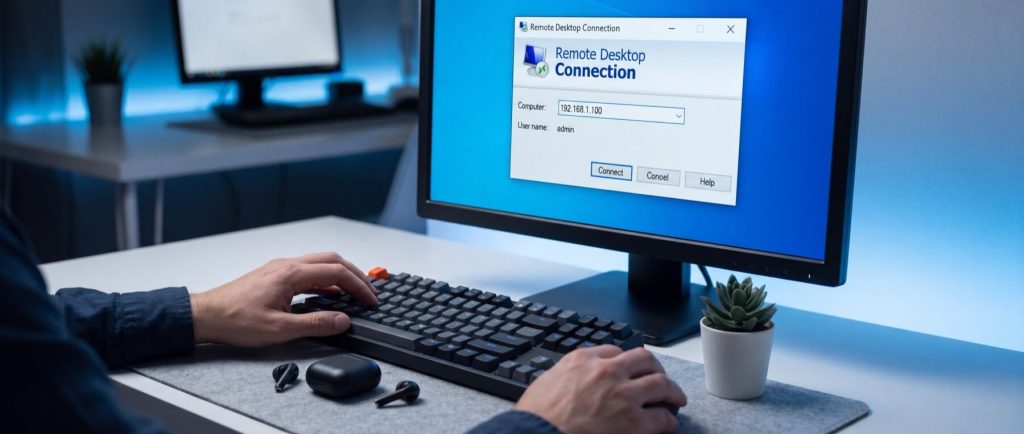
After provisioning, connect to your VPS using Remote Desktop. Retrieve the following details from your server dashboard or welcome email: the IP address, the username (typically `Administrator` for Windows Server), and the auto-generated password. It is crucial to enter these credentials exactly to avoid login errors.
On Windows, open Remote Desktop Connection (`mstsc`) and enter the VPS IP in the Computer field; the default username is usually sufficient. For regular access, save the session as an `.rdp` file by clicking Show Options. On a Mac, use Microsoft Remote Desktop and set up a new PC entry with similar configuration.
Ensure Network Level Authentication (NLA) is enabled in your client for added security by verifying credentials before the full desktop session is established. If the connection fails, confirm that TCP port 3389 is permitted through your VPS firewall. You can also test connectivity by running the following PowerShell command:
Test-NetConnection YOUR_VPS_IP -Port 3389
A successful test will display `TcpTestSucceeded : True`.
Checklist:
- Confirm the correct IP, username, and password
- Use the VPS public IP, not a local hostname
- Ensure TCP 3389 is allowed in the firewall
- Enable Network Level Authentication in your RDP client
- Save the session as an .rdp file for quicker access
Once connected, proceed with installing MetaTrader on the server.
Step 4: Install MetaTrader 4 or 5 on Your VPS
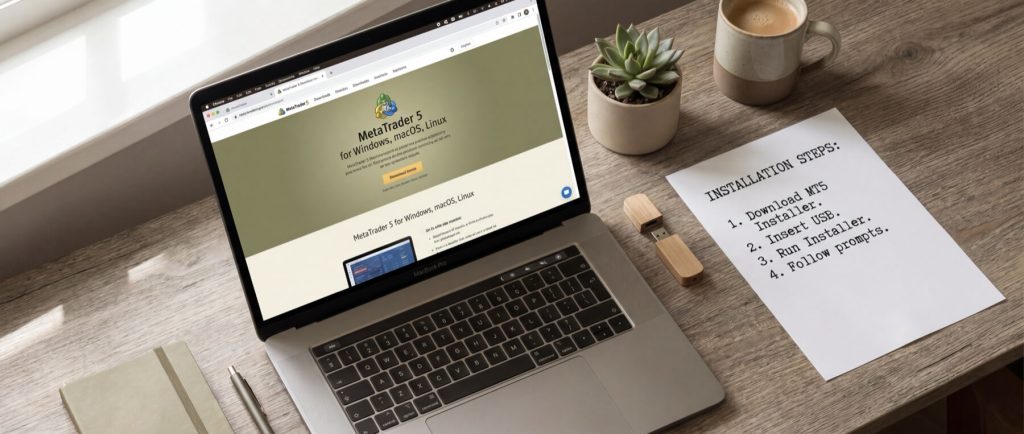
Within the remote desktop session, download and install MetaTrader directly on the VPS. It is safest to get the installer from your broker’s official website or from MetaQuotes, the developer behind MT4 and MT5. Broker-specific installers often come pre-loaded with the broker’s server list, which minimizes setup time.
- Open Microsoft Edge on the VPS and navigate to your broker’s download page.
- Select either MT4 or MT5 for Windows.
- Save the `.exe` file to an easily accessible location such as the Desktop or Downloads folder.
- Run the installer, proceed through the setup wizard, accept the license agreement (EULA), and confirm the installation path (typically something like `C:\Program Files\MetaTrader 5\` or `C:\Program Files (x86)\MetaTrader 4\`).
If installing multiple terminals, use distinct folder names (for example, `C:\MT5-BrokerName\`) for easy identification. During installation or at the first launch, if Windows prompts for firewall permissions, allow access so that MetaTrader can connect to its broker servers and retrieve chart data.
After installation, launch MetaTrader to verify that it opens correctly. Then, transfer your EAs, indicators, and profiles to complete your personalized setup.
Step 5: Migrate Your EAs, Indicators, and Profiles
Transform your fresh MetaTrader installation into your personalized trading environment by moving your custom files into the correct data folders. Do not scatter files into arbitrary folders; instead, place them into the designated MetaTrader data folder.
On your local PC, open MT4 or MT5 and navigate to File → Open Data Folder. Copy the following directories into the corresponding folder on your VPS:
- MT4: `MQL4\Experts`, `MQL4\Indicators`, `templates`, and optionally `profiles`
- MT5: `MQL5\Experts`, `MQL5\Indicators`, `templates`, and optionally `profiles`
For scripts, also copy `MQL4\Scripts` or `MQL5\Scripts`. Maintain file structure integrity (i.e., `.ex4` and `.mq4` files for MT4, and `.ex5` and `.mq5` files for MT5).
A reliable transfer method is RDP drive mapping. In your Remote Desktop client, navigate to Show Options → Local Resources → More and enable your local drive (e.g., C:). This drive will appear in the VPS File Explorer and can be used to copy your files over. After transferring, restart MetaTrader or refresh the Navigator panel to see your custom tools.
Checklist:
- Open File → Open Data Folder on both machines
- Copy directories: `Experts`, `Indicators`, `templates`, and `profiles` as needed
- Use proper mapping tools to transfer files
- Verify that MT4 files remain in MQL4 and MT5 files remain in MQL5
Step 6: Configure Auto-Launch for 24/7 Trading
To ensure continuous trading, set up MetaTrader to launch automatically after any VPS reboot. This configuration ensures that trading resumes even after Windows restarts due to updates or host maintenance.
One approach is to add the MetaTrader shortcut to the Windows Startup folder. Press `Win + R`, enter the command below, and drag the shortcut into the opened folder:
startup
While this method is straightforward, it might face issues with permissions or UAC. A more reliable solution is to use Task Scheduler:
- Open Task Scheduler and choose Create Task.
- Set the trigger to At log on for your VPS user account.
- In the Actions tab, set the action to Start a program and locate the MetaTrader executable (for example, `C:\Program Files (x86)\MetaTrader 4\terminal.exe` or `C:\Program Files\MetaTrader 5\terminal64.exe`).
- Enable Run with highest privileges.
Example configuration:
Task Name: MetaTrader Auto Launch
Run only when user is logged on: Yes
Run with highest privileges: Yes
Trigger:
- Begin the task: At log on
- Specific user: Your VPS username
Action:
- Start a program: [Path to MetaTrader executable]
- Start in: [Folder path of MetaTrader]
After creating the task, test it by restarting your VPS. Confirm that MetaTrader launches and reconnects automatically. You can also verify the task’s performance with the following PowerShell command:
Get-ScheduledTask -TaskName "MetaTrader Auto Launch" | Get-ScheduledTaskInfo
A recent LastRunTime and a LastTaskResult of `0` signal a successful execution.
Step 7: Test Latency to Your Broker Servers
Network latency also affects execution speed. The simplest method to measure latency is to use the `ping` command from the Command Prompt:
- Identify your broker’s server hostname (available via your MT4/MT5 login details or broker support).
- Open Command Prompt on the VPS.
- Execute the command:
ping broker.server.address -n 20
Replace `broker.server.address` with your broker’s actual hostname. The command sends 20 packets and calculates an average delay. Typical reply times might be `time=3ms` or `time=18ms`.
| Average ping to broker | Interpretation |
|---|---|
| < 5 ms | Negligible delay; ideal for extremely time-sensitive trades |
| 5–20 ms | Good performance; suitable for most trading strategies |
| > 20 ms | Noticeable lag; consider a server located closer to the broker |
Step 8: Set Up Uptime Monitoring and Alerts
To maintain continuous operations, set up monitoring and alerts to notify you within minutes if your VPS or MetaTrader becomes unresponsive.
Enable dashboard alerts in your control panel to monitor events like server downtime, reboots, and resource warnings. Additionally, tools like UptimeRobot can monitor MetaTrader specifically by checking a WebRequest or WebServer endpoint that you set up on a designated port.
Before configuring the external monitor, verify that the selected port is open by running:
netstat -ano | findstr :8080
You should see a `LISTENING` entry (for example, `0.0.0.0:8080`). Then, configure your HTTP or TCP monitor with the following settings:
- Host/IP: Your VPS public IP
- Port: 8080 (for example)
- Check Interval: 1 minute
- Alert Contacts: Email and SMS (or push notifications)
Test your alert configuration by temporarily stopping the monitored service and confirming that you receive notifications within 1–5 minutes.
| Monitoring item | Example setting | How to test | Expected outcome |
|---|---|---|---|
| VPS dashboard alert | Email + SMS on status change | Manually reboot the VPS | Alert received within minutes |
| Uptime monitor | TCP/HTTP check on port 8080 | Temporarily block port | Monitor shows DOWN and sends alert |
| Notification delivery | Primary email and phone | Send test alert | Both channels receive the alert |
For traders who require consistent performance, HostStage’s Windows VPS options provide reliable connectivity with features like 1 Gbps network ports, full administrative control, and competitive pricing. These plans are well-suited for running MT4/MT5 around the clock.
FAQ
How do I choose the right VPS plan for MetaTrader?
Consider the number of terminals, EAs, and chart complexity. Typically, a configuration like 2 vCPU/4 GB RAM suffices for a single terminal with light usage, while more intensive setups require higher resources.
Can I run both MT4 and MT5 on a single VPS?
Yes, you can, but it’s important to ensure that each platform’s resource demands are met by organizing them into separate folders and allocating sufficient CPU and RAM for both.
Why is selecting a VPS location near my broker important?
A nearby VPS reduces network latency significantly, which is critical for fast order execution and minimizing slippage during volatile market conditions.
Q: How can I ensure MetaTrader auto-launches after a reboot?
Use the Windows Startup folder or, for enhanced reliability, configure a scheduled task in Task Scheduler to run at logon with elevated privileges.