
An OBS streaming server on a VPS can move a prerecorded broadcast off your home PC. The difficult part is keeping the entire chain healthy: graphics and encoding, the Windows session, network delivery and the video your audience actually receives.
This guide follows a Windows desktop workflow for one OBS output to a streaming platform. First confirm that the virtual machine meets OBS requirements. Then build a media loop, configure a tested launch task and check each recovery path before leaving it unattended.
Check graphics support before choosing the architecture
OBS is a graphical application. Its Windows requirements list Windows 10 or 11 and a DirectX 10.1-compatible GPU. Selecting the x264 software encoder does not remove the graphics requirement for composing scenes. Windows Server editions are not listed on that page; a Windows license or working RDP connection alone does not establish support.
Ask the provider which Windows edition, graphics adapter and driver the virtual machine exposes to OBS. Confirm that OBS can launch, render your scene and keep doing so after RDP disconnects. NVENC additionally requires compatible NVIDIA encoder access. If that environment cannot be confirmed, keep OBS on suitable local hardware and use the VPS as a relay, or evaluate a headless FFmpeg workflow for prerecorded content.
For direct streaming, media stored on the VPS goes through OBS to the destination. No nginx-rtmp installation is needed. A relay receives an already encoded stream and forwards it; it does not make an incompatible OBS desktop usable. A webcam or game on your home computer must still be captured there. See the separate streaming-server setup guide when redistribution is the goal.
Size the workload and budget transfer
A plan’s core count cannot tell you whether a particular scene will encode reliably. Test the actual media, resolution, frame rate, encoder and plugins together. Keep the first scene simple, then add browser sources, filters or recording one change at a time.
| Workload factor | What to verify |
|---|---|
| Scenes and sources | Graphics compatibility, rendering time and memory use with the complete scene. |
| Encoder and output format | Sustained encoding at the chosen resolution, frame rate and preset. |
| Continuous delivery | Route to the ingest endpoint, included transfer and any throttling or overage terms. |
| Media and recordings | Space for source files, logs and retained recordings; a cleanup policy. |
Port speed and monthly transfer are separate. Calculate payload from the combined video and audio bitrate, stream duration and number of independently transmitted outputs, then account for measured transport overhead and provider billing rules. A nominal port rate is not a sustained throughput promise or an unlimited-transfer allowance.
The HostStage Windows VPS page lists remote desktop access, administrator access, a Windows license and NVMe storage. These features support administration and media storage; the page does not establish OBS graphics compatibility or a tested stream capacity. Confirm those details and transfer terms for the chosen plan before ordering.
Connect securely and install OBS
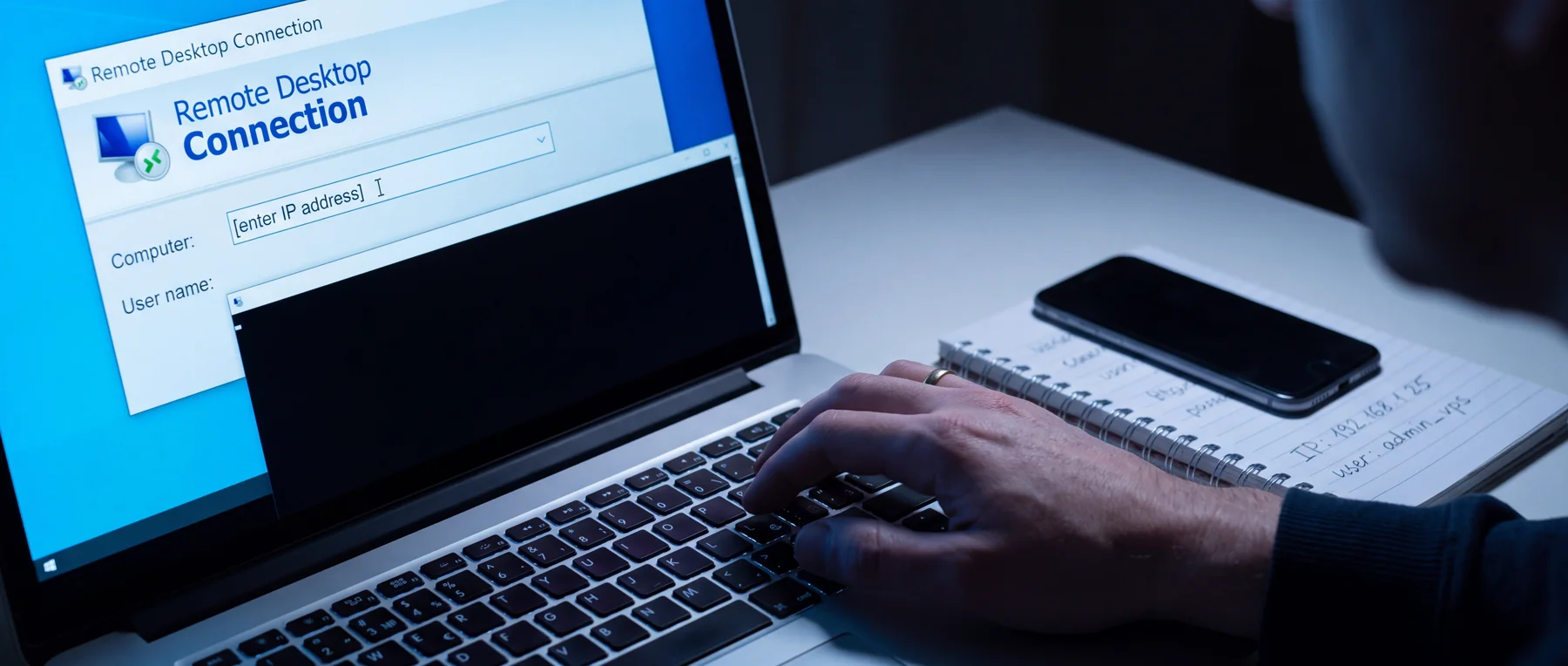
Use the provider’s connection details to open Remote Desktop, replace temporary credentials and test the recovery console. Restrict remote administration to trusted addresses or a private access path. Keep a separate streaming user with only the access it needs, and use an administrator account for maintenance when required.
Complete Windows updates and a reboot before configuring the broadcast. Install OBS from the official download page, record its version and launch it in the intended user session. Test the graphics prerequisite now, before spending time on scenes or plugins.
Upload media to a permanent local directory that the streaming user can read. Keep a backup of the original media. Install only plugins whose release notes support your OBS version, and record their versions alongside the OBS configuration.
Build and verify the media loop
Create a profile and scene collection named 24-7 Broadcast. A profile holds settings such as stream service, output and video configuration; the scene collection holds scenes and their sources. Export both before major changes.
In Sources, add a Media Source, select the file and enable Loop. Decide whether returning to the scene should restart playback, then set Restart playback when source becomes active accordingly. For a playlist, VLC Video Source requires VLC; 64-bit OBS needs 64-bit VLC. Check the documented media-source options instead of expecting one Media Source to cycle through a directory.
Match the canvas and output aspect ratio to the intended programme. Fit or crop the source without stretching it. Watch a complete loop boundary and listen from the destination: check for missing audio, clipping, frozen frames and an unexpected restart. A moving preview is not an audio check.
Leave recording off unless you need it. If you record, define retention and low-disk alerts before launch. An otherwise healthy broadcast can fail when its own recordings fill the server.
Match the output to the destination
In Settings → Stream, use the platform integration or the exact ingest endpoint supplied by its dashboard. Keep the stream key private. For YouTube, prefer its documented RTMPS option. Choose an encoder that OBS actually detects, and use the destination’s current codec, audio and keyframe requirements.
For a concrete example, these are the H.264 entries shown in YouTube’s encoder guidance, checked 23 November 2026:
| 1080p H.264 | Minimum video bitrate | Recommended video bitrate |
|---|---|---|
| 30 fps | 5 Mbps | 14 Mbps |
| 60 fps | 6 Mbps | 17 Mbps |
These are alternative platform settings, not measured VPS performance. Audio and transport add traffic. YouTube recommends CBR and two-second keyframes; verify the full codec-specific guidance before launch. Use the chosen platform’s own documentation for Twitch, Facebook or another destination rather than copying a YouTube row.
Start with one output. If a relay distributes it elsewhere, include the relay’s outbound traffic in your budget. If OBS or a plugin sends additional outputs, check whether it reuses an encode or performs another one. More destinations can increase network traffic even when encoding is shared.
Test the whole broadcast path
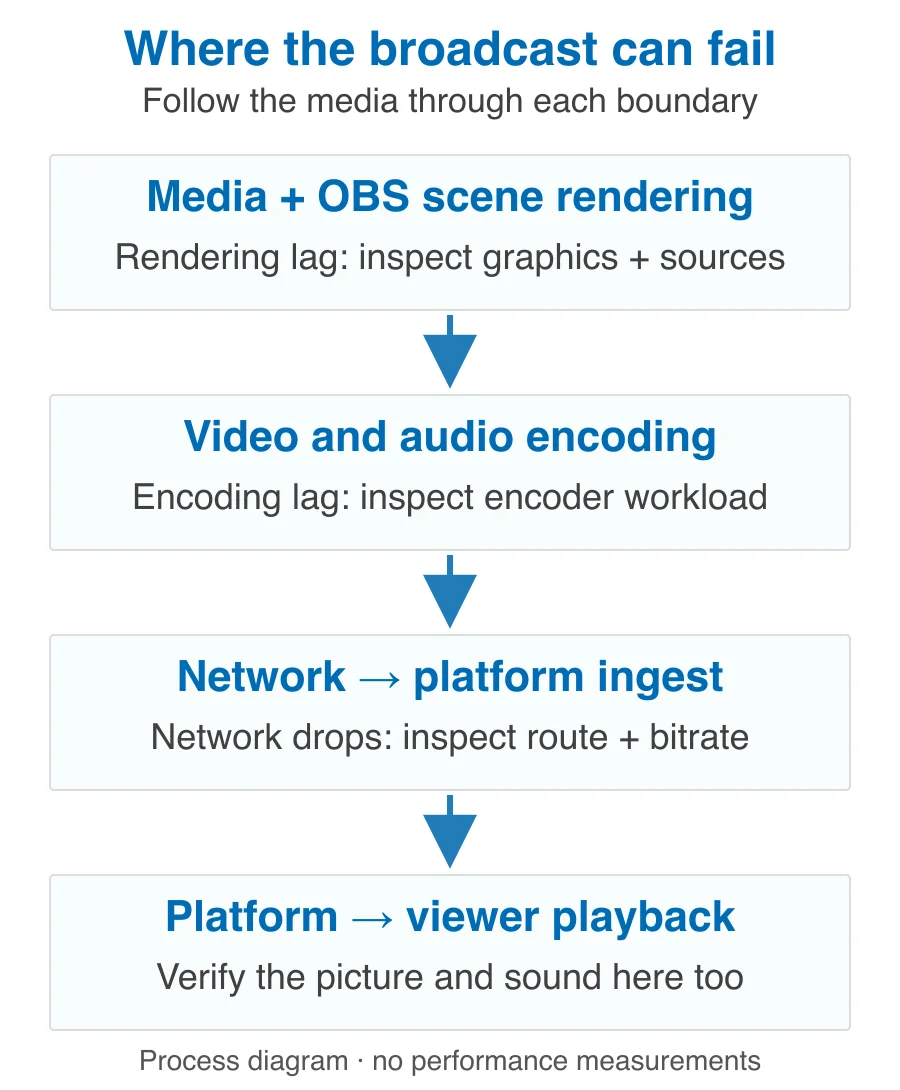
The diagram separates three OBS fault locations from the final audience check. A rendering fault happens before encoding; an encoding fault happens before delivery. Network-dropped frames point to the connection to the ingest server. A healthy OBS counter still does not prove that the platform is showing the intended video and audio.
Sources: OBS rendering and encoding guidance, OBS connection troubleshooting and YouTube’s test and stream-health guidance, checked 23 November 2026. This is a process diagram, not a benchmark.
Use a private or unlisted broadcast where the platform supports it. Run the complete scene through at least one media loop and for long enough to expose sustained resource pressure. Keep View → Stats open and save the OBS log when a fault occurs.
- Rendering lag: inspect graphics load and simplify expensive sources or filters.
- Encoding lag: reduce the encoder workload, output resolution or frame rate, then retest.
- Network-dropped frames: check the route, stable upload capacity and ingest endpoint; a CPU upgrade does not repair packet delivery.
- No OBS fault but bad playback: check destination health, audio, the active scene and the viewer player.
Watch from another device. Then disconnect RDP and keep watching: the renderer, audio devices and session policy must all behave correctly without that connection. Reconnect and compare the OBS log with the platform’s event history.
Plan recovery beyond an RDP disconnect
Disconnecting RDP and signing out are different. Microsoft documents that a disconnected session can continue running, but session-limit policies affect what happens later. Signing out closes the interactive session. Test your actual policy and graphics behaviour; do not promise continuity from a short disconnect alone.
For a launch at user sign-in, create a Task Scheduler task for the dedicated streaming user. Choose Run only when user is logged on and an At log on trigger for that user. Microsoft’s interactive-token task mode requires an existing interactive session. This is not unattended reboot recovery.
For a default OBS installation, enter this executable in Program/script; verify the path on your server:
C:\Program Files\obs-studio\bin\64bit\obs64.exe
Use these Add arguments values after creating and testing the named profile and scene collection:
--profile "24-7 Broadcast" --collection "24-7 Broadcast" --startstreaming
Set Start in to the folder containing the executable:
C:\Program Files\obs-studio\bin\64bit
OBS’s launch-parameter documentation requires that working directory for scheduled launches. Run the task manually while signed in and confirm it loads the correct media and starts the intended test stream. Do not add a stream key to the command line.
Review automatic reconnect settings in OBS’s Advanced settings and test a temporary ingest interruption. Reconnection does not restart a crashed application. Likewise, an at-logon task does not create a desktop session after reboot. Arrange a secure session-restoration and supervision method appropriate to your environment, or use a service-oriented workflow if reboot recovery without a person is essential.
| Test | Pass evidence to record |
|---|---|
| RDP disconnect | Destination continues receiving the correct video and audio. |
| OBS process stops | Configured supervision restores the intended broadcast; record any manual step. |
| Ingest interruption | OBS reconnects and the platform resumes receiving the stream. |
| VPS reboot | Session, profile, collection and stream return through the tested recovery procedure. |
Protect control access and monitor the audience output
Keep Windows, OBS and required plugins maintained. Restrict RDP to the management path you tested. If you do not need OBS WebSocket, leave it disabled. It is bundled with OBS 28 and later; when enabled, require a unique password and restrict its port to a VPN or trusted management addresses. The project documentation identifies port 4455 as the default.
Keep stream keys out of screenshots, logs, tickets and repositories. Rotate an exposed key through the platform, update OBS and test delivery again. Store configuration backups securely because they may contain publishing credentials.
Monitor the server, OBS process, resource use and destination independently. Set alerts for low disk space, transfer limits and stream interruptions. After changing a source, encoder, plugin or Windows configuration, repeat the relevant recovery tests. Check platform rules and your rights to the media before leaving prerecorded content running continuously.
Your launch decision should follow evidence: the actual scene runs within resources, the destination receives clean video and audio, recovery behaves as documented, and someone will receive actionable alerts. Until then, keep the broadcast in its test mode.
Frequently asked questions
Can OBS run on any Windows VPS?
No. Confirm the Windows edition, graphics support and sustained encoding capacity. RDP access and CPU cores alone do not prove that OBS can render a scene.
Does x264 mean I do not need compatible graphics?
No. x264 handles software encoding; OBS still needs graphics resources to compose and render the scene before encoding.
Will closing Remote Desktop stop the stream?
A disconnect can leave the session running, but test graphics, audio and timeout policies on your deployment. Signing out ends the interactive session.
Will the at-logon task recover from a reboot?
It launches OBS after the streaming user signs in. It does not create that sign-in session. Verify a separate, secure recovery procedure before calling the stream unattended.
Do I need nginx-rtmp or a GPU encoder?
A direct OBS output needs no RTMP relay. A hardware encoder such as NVENC is optional only when compatible hardware is available; it is separate from OBS’s graphics-rendering requirement.
How do I know the broadcast is healthy?
Check OBS statistics and logs, the platform’s ingest status and real playback with audio. A reachable server or a running OBS process is only part of the evidence.