

OBS Studio is powerful on its own, but plugins can transform your streaming experience by adding advanced features, automation, and visual effects. This guide highlights the best OBS plugins for 2025, covering tools for performance, workflow automation, and enhanced visuals. Whether you’re looking to optimize encoding, automate scene switching, or create professional transitions, these plugins can help you achieve your goals.
Key Highlights:
- Performance Boosters: Plugins like StreamFX and OBS Shaderfilter Plus improve visual quality while reducing system strain.
- Automation Tools: Advanced Scene Switcher and Triggerfyre simplify scene management and enable interactive features.
- Visual Enhancements: Move Transition and ShaderFilter create smooth transitions and cinematic effects.
- Audio & Analytics: Tuna and Audio Monitor improve sound management, while OBS Stats Dock tracks stream performance in real time.
- Safe Installation Tips: Always back up profiles, test plugins in a separate environment, and monitor system performance.
What’s New for OBS Plugins in 2026
A plugin list is only as good as the day it was checked, and OBS moved fast over the last year. If you’re landing here from a “December 2025” or “2026 edition” search, you want the current state of play, not last year’s screenshots. Here is what actually changed, and what it means for your scene collection.
OBS Studio 30.x became the new compatibility floor, and 31.x is now mainstream. The practical rule for 2026: a plugin should carry an explicit note for OBS 30.x, 31.x, or 32.x. Anything that only lists 28.x/29.x support is a yellow flag — it may load, but it’s a crash waiting for the next update. Before installing anything, check the developer’s release page for a version note that matches the OBS build you’re actually running.
StreamFX — once the default visual-effects plugin — is effectively deprecated for modern OBS. It has had escalating compatibility problems and does not reliably work on OBS 30+. The good news is you mostly don’t need it anymore: OBS core absorbed several of its features, and the gaps are filled by lighter, actively maintained single-purpose plugins. If your old setup leans on StreamFX, this is the year to migrate off it. For 3D transforms and effects, OBS core now covers the common cases; for high-quality blur, Composite Blur (Dual Kawase mode) outperforms the built-in scaling blur and is current.
The AI plugins matured. obs-backgroundremoval (green-screen-free, MediaPipe / SelfieSegmentation / PPHumanSeg models) and obs-localvocal (local, no-cloud live captions) are both stable on OBS 30/31 and genuinely useful now rather than experimental. Budget for their cost, though — these run real inference. Background removal adds roughly 5–15% CPU and 100–300 MB RAM depending on model; LocalVocal adds 5–10% CPU and 200–500 MB. On a modest machine that is the difference between a smooth stream and a dropped-frames warning, which is exactly where a dedicated Windows VPS for streaming earns its keep — it gives those AI filters their own clock cycles instead of fighting your game for them.
obs-websocket is no longer a plugin. Since OBS 28 it’s built in (Tools → obs-websocket Settings). If a tutorial still tells you to install it separately, that tutorial is stale — another reason to date-check your sources in 2026.
OBS Plugin Compatibility: Which Survived the Jump to OBS 30/31/32
The single most useful thing we can give you is a clear yes/no on what still works. Here’s the compatibility picture for the plugins worth running in 2026.
| Plugin | What it does | OBS 30 | OBS 31 | Status in 2026 |
|---|---|---|---|---|
| Advanced Scene Switcher | Trigger-based automation | Yes | Yes | Actively maintained, essential |
| Move Transition | Animated source moves | Yes | Yes | Stable, low overhead |
| obs-backgroundremoval | AI green-screen removal | Yes | Yes | Mature; budget 5–15% CPU |
| obs-localvocal | Local live captions (STT) | Yes | Yes | Stable; needs OBS 29+ |
| Source Record | Record sources separately | Yes | Yes | Reliable for post-production |
| Composite Blur | High-quality blur filter | Yes | Yes | The modern StreamFX-blur replacement |
| Aitum Multistream | Multistream to many platforms | Yes (needs 30.0.0+) | Yes | Updated May 2026 — recommended |
| StreamFX | 3D transform / shaders / blur | No | No | Deprecated — migrate off it |
One safety habit that matters more in 2026 than ever: install plugins only from the OBS Project forum, the developer’s own GitHub releases, or your OS package manager. A plugin runs inside OBS with the same system access OBS has, so a “download every popular plugin in one bundle” site is a genuine security risk, not just a convenience. Install one plugin at a time, too — that way when something crashes you know exactly which file to pull.
How to Choose and Install OBS Plugins Safely
When it comes to enhancing your OBS setup with plugins, safety and stability should always be top priorities. A careful installation process ensures your system remains reliable while unlocking powerful new features. Rushing or skipping precautions, on the other hand, can lead to crashes or other headaches. Think of installing plugins as you would updating critical software – take your time, double-check everything, and have a backup plan.
Plugin Installation Best Practices
Start with a backup. Before making any changes, export your current OBS profile and scene collections. This is as simple as navigating to Profile > Export and Scene Collection > Export in OBS Studio. Save these files in a folder labeled with today’s date so you can easily restore your setup if something goes wrong.
Stick to trusted sources. Always download plugins from reliable locations like the official OBS Studio Plugin Directory or well-known GitHub repositories. Third-party websites can sometimes bundle outdated or even harmful code, so it’s better to play it safe.
Check compatibility before you download. Plugins are not one-size-fits-all. Make sure the plugin you’re eyeing is compatible with your OBS version and operating system. For instance, a plugin designed for OBS 28.x might not work with OBS 30.x. Also, confirm whether your system is 64-bit, as most modern plugins require it.
Test in a separate profile. Avoid risking your main configuration by testing new plugins in a dedicated profile. You can create one by going to Profile > New and naming it something like “Plugin Testing.” This sandbox environment lets you safely experiment without affecting your primary setup.
Monitor system performance. When you first start using a new plugin, keep an eye on your system’s resource usage. Open Task Manager (Windows) or Activity Monitor (macOS) during your test streams to watch for unusual CPU or memory spikes. Sometimes, plugins that work fine on their own can conflict with others, so stay alert.
If a plugin causes issues like crashes or erratic behavior, removing it is simple. Close OBS, then delete the plugin’s folders from the ‘obs-plugins’ and ‘data’ directories in your OBS installation folder. Restart OBS, and the problematic plugin will no longer affect your system.
OBS Plugin Compatibility Table
The table below can help you quickly determine which plugins are compatible with your platform and OBS version. This saves you time and frustration when setting up your system.
| Plugin Name | Windows | macOS | Linux | OBS 30.x+ | Notes |
|---|---|---|---|---|---|
| StreamFX | ✅ | ✅ | ✅ | ✅ | Cross-platform, actively maintained |
| Move Transition | ✅ | ✅ | ✅ | ✅ | Works seamlessly on all platforms |
| Advanced Scene Switcher | ✅ | ✅ | ✅ | ✅ | Auto-installers available for all OS |
| Source Clone | ✅ | ✅ | ✅ | ✅ | Universal compatibility |
| Aitum Multistreaming | ✅ | ❌ | ❌ | ✅ | Windows-only limitation |
| Background Removal | ✅ | ✅ | ✅ | ✅ | GPU acceleration varies by platform |
| Source Dock | ✅ | ✅ | ✅ | ✅ | Available across all platforms |
Windows users enjoy the broadest plugin selection, including exclusive options like Aitum Multistreaming. macOS and Linux users can still access most popular plugins but should double-check for any platform-specific limitations.
Keep in mind that most plugins require a 64-bit system. If you’re running a 32-bit setup, your options will be severely limited. Additionally, OBS 30.x and newer versions are the standard for plugin compatibility. While older versions like OBS 28.x or 29.x may work with some plugins, you’ll likely encounter more issues and miss out on performance improvements. Keeping OBS updated ensures the smoothest experience and the widest range of plugin options.
Performance and Encoding Plugins
If you’ve ever dealt with dropped frames or pixelation during a stream, chances are the issue lies with OBS’s workload rather than your internet connection. These performance-focused plugins can help tackle those challenges by improving visual quality and reducing system strain, all while offering more flexibility in your setup.
StreamFX
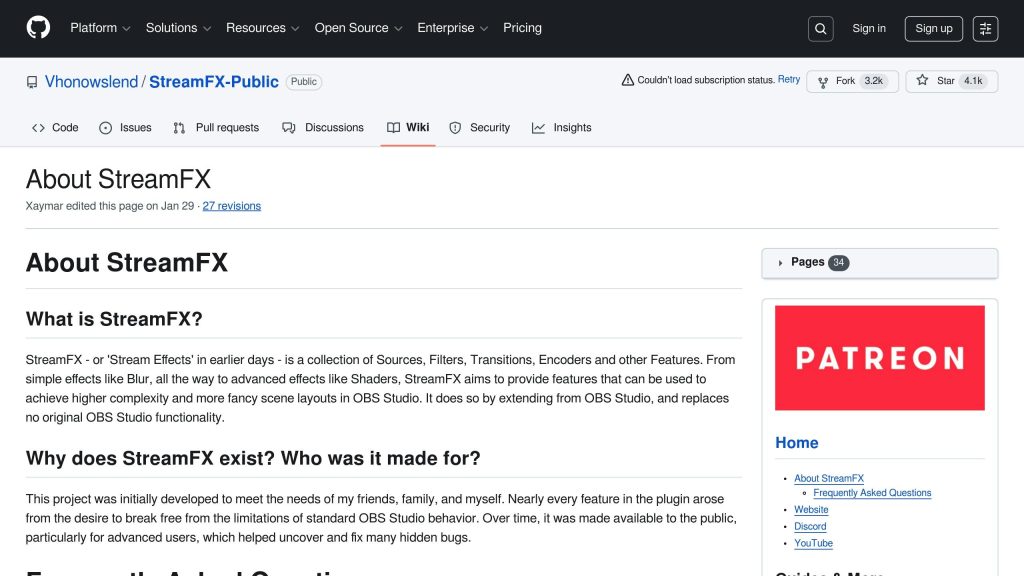
StreamFX is a must-have plugin for streamers looking to elevate their visuals. It introduces a variety of special effects, including glow, blur, and shadow features, allowing you to fine-tune your presentation. One standout feature is its Stroke Glow Shadow, which gives you precise control over webcam borders and text overlays, helping you achieve a polished, professional look.
OBS Shaderfilter Plus
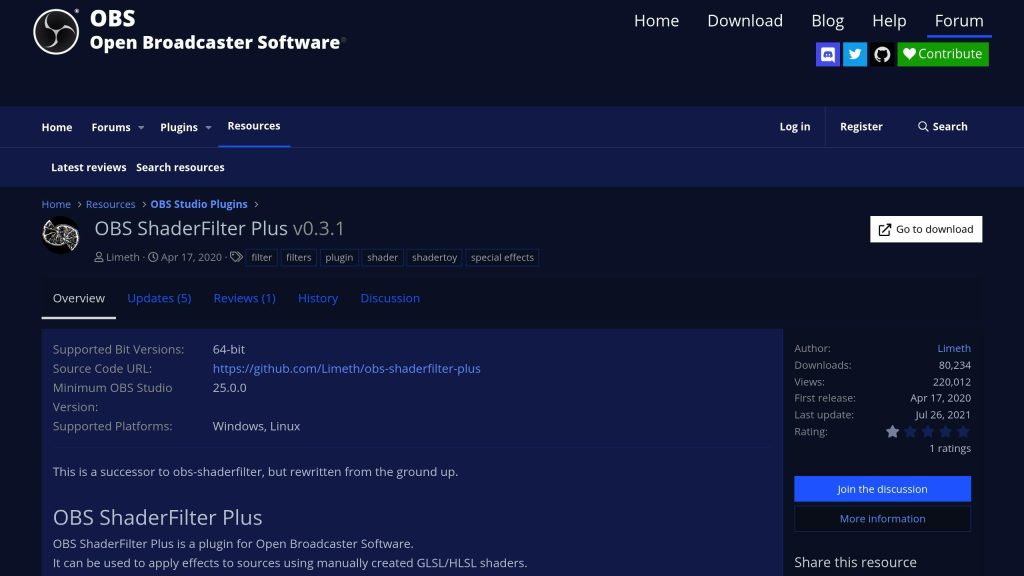
While StreamFX adds visual flair, OBS Shaderfilter Plus focuses on delivering GPU-based effects that won’t overload your CPU. This plugin opens the door to custom shader programming, but you don’t need coding knowledge to get started. It comes with a library of pre-built effects, like film grain, color grading, and vignetting, that can add depth and atmosphere to your stream. Streamers often use its gradient overlays and distortion effects for smooth scene transitions or to maintain consistent branding. If you’re using a green screen, its advanced edge refinement can clean up chromakey artifacts in real time, ensuring a sharp and professional output.
Source Record
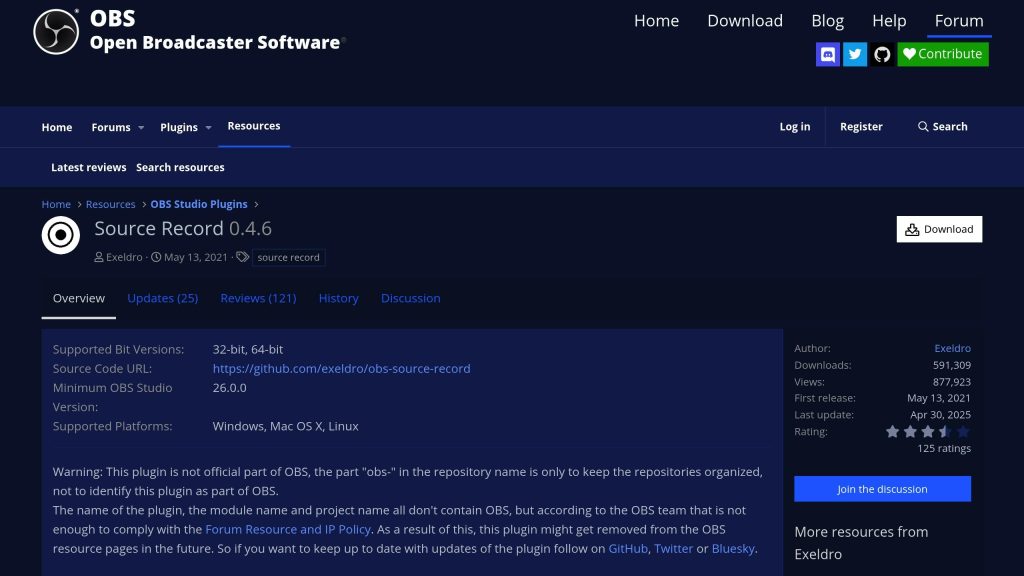
Source Record solves a common challenge for streamers: capturing individual elements of your stream separately. Unlike OBS’s default recording setup, this plugin allows you to record specific sources – like your webcam, game footage, or microphone audio – into separate files while streaming live. This parallel recording feature is perfect for creating multi-angle edits, flexible post-production workflows, or even keeping reliable local backups of your stream.
If you’re pushing your system to its limits, stay tuned to see how a VPS relay can help stabilize your encoding process even further.
Automation and Workflow Plugins
Automation plugins take the hassle out of managing scenes and transitions manually, letting you focus on what really matters – your content. Let’s take a closer look at two standout tools that simplify your workflow.
Advanced Scene Switcher
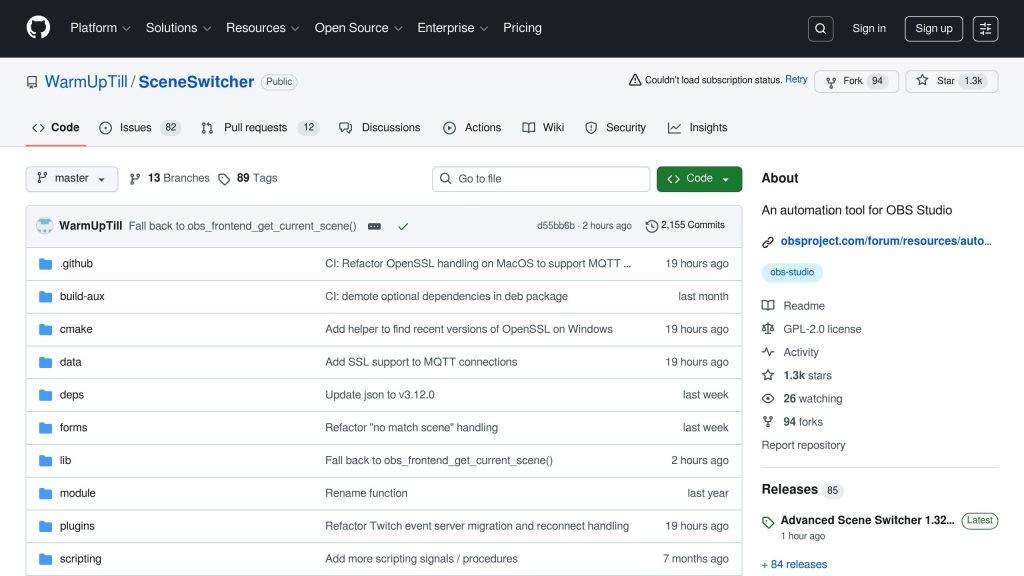
Advanced Scene Switcher transforms OBS into a smart, automated streaming assistant that adapts to your workflow. It can automatically switch scenes based on actions like alt-tabbing or opening specific apps. This not only saves time but also reduces system load, aligning perfectly with performance optimization goals.
What sets this plugin apart is its macro system, which allows you to create detailed workflows with multiple triggers and actions. For instance, if your setup detects inactivity for five minutes, it can seamlessly switch to a waiting screen, mute your mic, and pause your music. Educational streamers often use it to automatically move between slides by tracking the active window.
Another handy feature is window detection, ideal for multitasking streamers. If you’re managing Discord during a stream, the plugin can detect when you’re typing and temporarily switch to a scene that conceals sensitive information. This safeguards against accidental leaks of private messages or personal details while broadcasting live.
The plugin also supports chat-driven and remote controls, adding even more flexibility to your automation setup.
Triggerfyre and WebSocket Automation
Triggerfyre connects chat commands directly to OBS actions. By linking to your streaming platform’s chat system, it allows you to trigger preconfigured OBS commands based on specific keywords. For example, a viewer typing “!lights” in chat can prompt Triggerfyre to dim the scene or toggle certain sources on and off.
This plugin shines when it comes to creating interactive moments during streams. Many streamers use Triggerfyre to let their audience control elements like background music, camera angles, or sound effects. You can even set up subscriber-only commands that unlock exclusive scenes or effects, enhancing engagement while adding value to your monetization efforts.
WebSocket automation takes this a step further by enabling remote control through OBS’s WebSocket protocol. This lets you connect external devices – like Stream Decks, mobile apps, or custom web dashboards – to manage your stream remotely.
However, running complex automation setups can put a strain on your system. WebSocket connections and intricate trigger systems can eat into CPU resources, potentially affecting stream quality. One solution is offloading these processes to a VPS. By separating your local OBS setup from the automation logic, you ensure smooth performance, avoiding dropped frames or interruptions during your broadcast.
Visual Effects and Transition Plugins
Improving your stream’s visuals is just as important as fine-tuning performance and automation. A polished visual experience keeps viewers engaged and adds a professional touch to your content. Visual effects plugins can transform basic OBS transitions into cinematic moments, all without the need for expensive production tools.
Move Transition
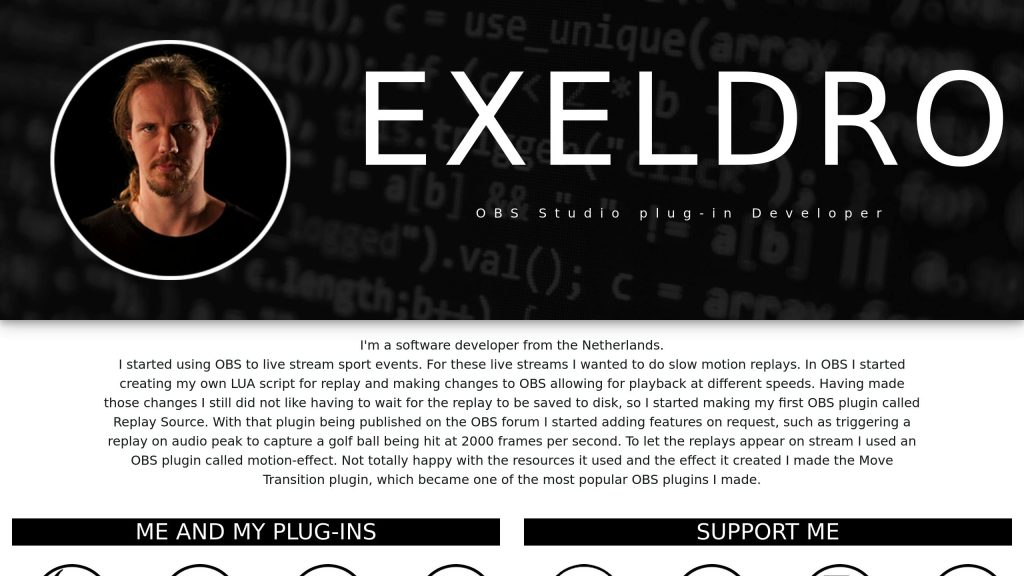
Move Transition, developed by Exeldro, is one of the most popular transition plugins for OBS – and for good reason. This free tool allows for smooth, animated transitions between scenes, giving your stream a dynamic and polished look.
The plugin shines when it comes to creating fluid camera movements and scene transitions. Whether you want to add smooth zooms, pans, or rotations, Move Transition makes it easy to give your stream a more engaging feel. For best results, set transition times between 500-1000 milliseconds for quick, snappy effects, or extend to 1500-2000 milliseconds for a slower, more cinematic vibe.
Its easing functions – such as Ease In, Ease Out, or Ease In-Out – help create natural, seamless motion that avoids abrupt changes.
Customization is where this plugin truly stands out. You can tweak positioning, rotation, and scaling for individual sources like overlays, text, or webcam feeds. Imagine your webcam smoothly sliding across the screen while rotating and resizing – this level of control allows for creative, visually compelling moments.
“This plugin should literally just be part of OBS at this point. It is more powerful than I know how to properly describe. The amount of control it brings to your fingertips cannot be overstated.” – Shredcase, User Review
That said, some users have reported minor compatibility issues. For instance, there have been occasional problems with the zoom function when paired with fade transitions, and some have noted conflicts with specific fade effects. Despite these hiccups, most streamers find simple workarounds to keep the plugin running effectively.
For smooth performance, keep transition durations reasonable, turn off unnecessary animations when not in use, and close background apps during intense streaming sessions. Keep in mind that Move Transition can be GPU-intensive, particularly when managing multiple animated sources at the same time.
Next up, let’s look at how ShaderFilter plugins can take your visuals to the next level.
ShaderFilter and Motion Effects
ShaderFilter plugins open the door to real-time visual effects, offering tools like gradient overlays, glow effects, and subtle animations – all without requiring expensive production software. These GPU-powered effects can enhance your stream’s visual appeal without overshadowing your content.
One of the plugin’s standout features is its ability to create gradient overlays, which allow for smooth color transitions across scenes or specific elements. This can add mood lighting or depth to your visuals. Glow effects, on the other hand, are perfect for highlighting key elements like notifications or alerts, responding instantly to scene changes. Motion effects breathe life into static visuals by adding gentle pulsing text, gradual background color shifts, or soft breathing effects to overlays – drawing attention without overwhelming viewers.
However, ShaderFilter plugins are GPU-dependent, which means more complex effects can put a strain on your graphics card. If you’re using an older system, this could lead to frame drops or overheating. To avoid performance issues, monitor your GPU usage and dial back the intensity of effects if needed.
For those dealing with heavy shader setups, consider offloading some of the processing to a VPS. This can help maintain smooth local performance, ensuring your stream runs without a hitch.
Music, Audio, and Analytics Plugins
When it comes to professional streaming, visuals and automation often steal the spotlight. But if you want to elevate your stream, don’t overlook the importance of audio quality and performance analytics. These elements can shape your audience’s experience in ways you might not immediately notice. With the right plugins, you can showcase your music, manage complex audio setups, and track your stream’s performance – all without disrupting your creative process.
Tuna
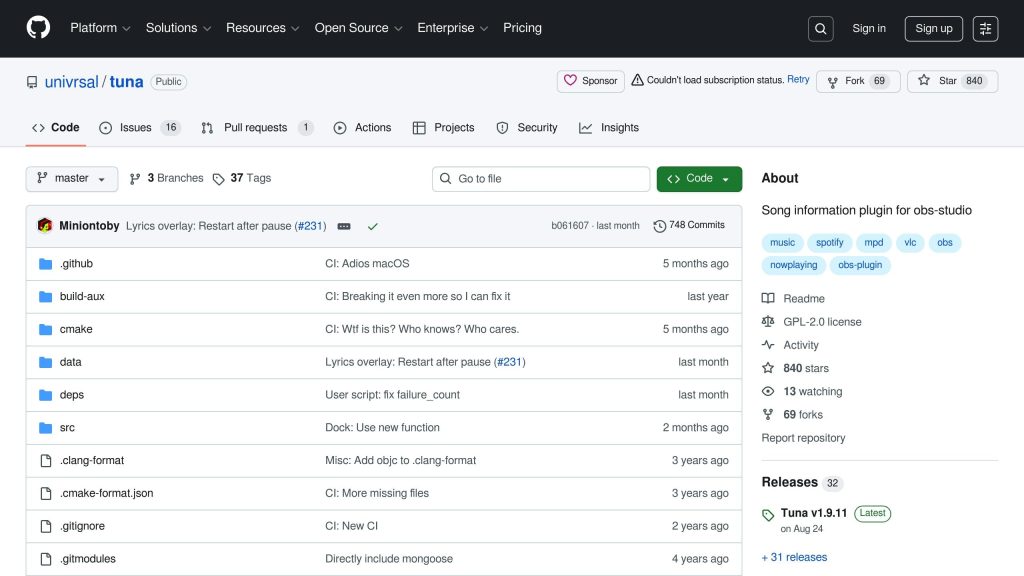
Tuna is a free OBS plugin that adds a polished touch to your stream by displaying real-time “now playing” information. It works with popular platforms like Spotify, YouTube, VLC, SoundCloud, Last.fm, and Google Play Music. This plugin not only shows the song title but also includes album artwork, giving your stream a sleek, professional vibe.
Setting up Tuna is straightforward. You can customize fonts and positioning, and the plugin automatically updates the display with each track change. However, keep in mind that streaming licensed music can lead to muted VODs or copyright strikes on platforms like Twitch and YouTube. Many streamers stick to copyright-free music to avoid these headaches.
Audio Monitor
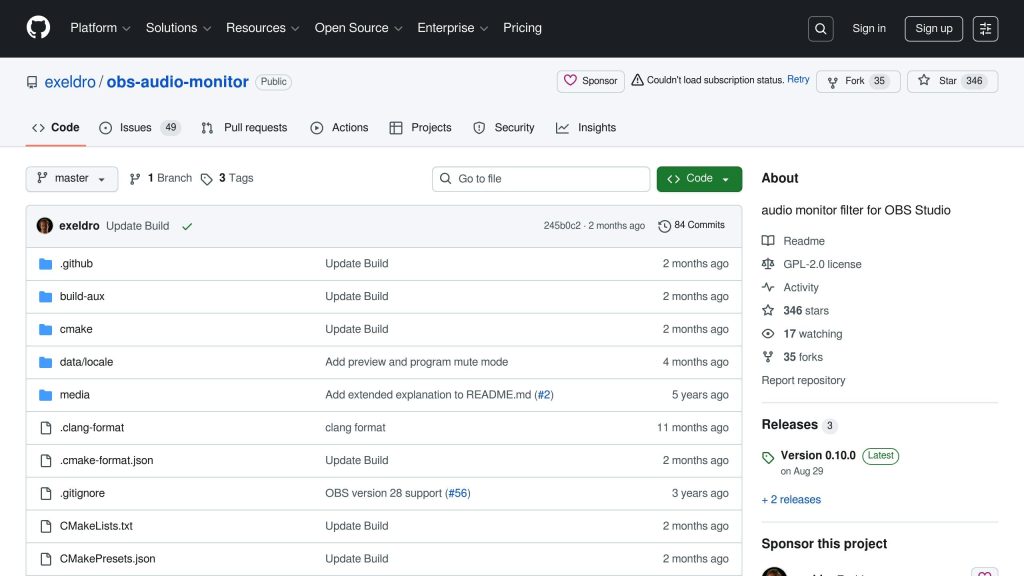
Managing multiple live audio sources can get tricky, but Audio Monitor simplifies the process. This OBS plugin provides real-time audio routing and preview features, so you can ensure your audience hears exactly what you intend.
One standout feature is its preview function, which lets you hear the mix your viewers are getting. This is especially helpful when juggling multiple inputs like microphones, game audio, background music, and alert sounds. You can even route specific audio sources to different outputs. For example, you might send one mix to your headphones while your audience hears another, helping you avoid feedback and maintain a balanced sound.
Audio Monitor also provides level meters for visual feedback, making it easy to adjust audio sources on the fly. Whether you need to lower game audio while speaking or tweak music levels during an intense moment, this plugin ensures everything stays balanced.
OBS Stats Dock and Stream Monitor
Keeping tabs on your stream’s technical performance in real time can mean the difference between a smooth broadcast and a frustrating one. The OBS Stats on Stream Lua script is a powerful tool that provides detailed analytics to help you spot and resolve issues before they affect your stream.
This script displays essential metrics like FPS, bitrate, dropped frames, and CPU/memory usage. With these stats visible, you can quickly make adjustments if performance starts to dip.
Installing the script is simple. After downloading and unzipping it, add a text source to your scene and head to Tools → Scripts in OBS to configure its settings. You can set the update interval (usually 1000ms for a one-second refresh rate) and customize the text formatting to match your stream’s style.
Streamers appreciate how reliable and flexible this script is. You can choose to display the stats directly on your stream for transparency or keep them visible only within OBS for personal monitoring. Either way, having real-time feedback helps you diagnose problems quickly. For instance, if you notice a spike in dropped frames, you can immediately check for potential causes like network congestion, encoding issues, or system bottlenecks.
The script is also a great tool for testing new plugins or tweaking your system settings. By monitoring performance metrics, you can make informed decisions about which configurations work best for different types of content.
Chat & Interaction Plugins
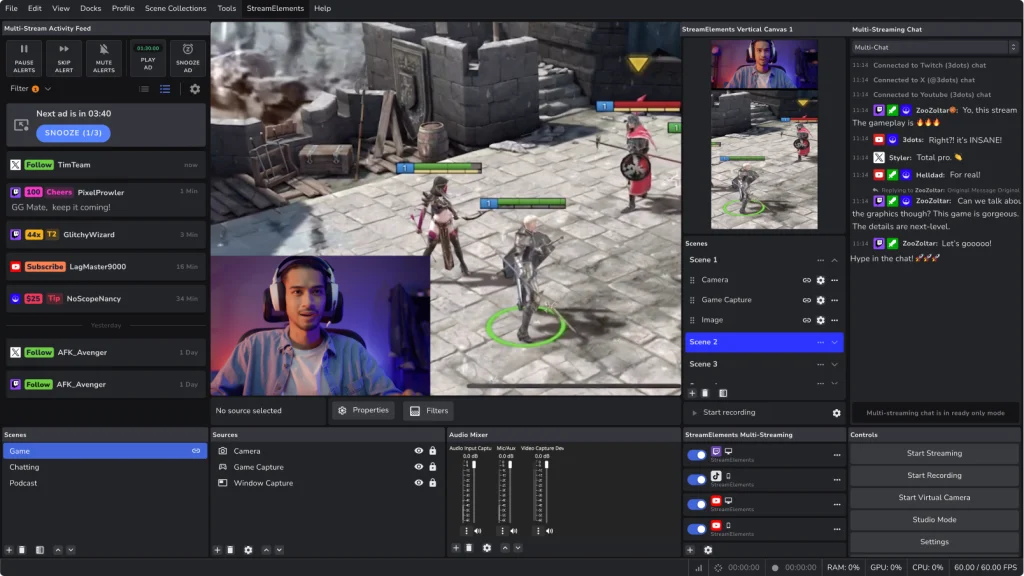
SE.Live (StreamElements) — Free Tier
The all-in-one chat and interaction tool.
- Twitch/YouTube chat overlay: Read live chat inside OBS, no tab alt-tab
- Alerts: Donations, subs, follows trigger visual alerts on stream
- Custom chatbot: Respond to !commands automatically
- Media requests: Chat can request songs or sound effects
Cost: Free tier covers most needs. Pro tier ($99/mo) adds advanced automation and analytics.
Triggerfyre (Free)
Connect Twitch chat commands directly to OBS actions. Type !commercial in chat, triggers commercial break and mutes game audio. Type !scene, switch scenes instantly.
Perfect for solo streamers or teams. Moderators can control the stream without touching your PC.
AI-Powered Plugins: Background Removal, Auto-Scene Switching, and Smart Audio
AI plugins crossed the threshold from gimmick to production-ready in late 2025. Three categories matter for streamers: real-time background segmentation, automated scene logic, and intelligent audio processing. Here’s what actually works and what’s still half-baked.
NVIDIA Broadcast: The All-in-One AI Suite
NVIDIA Broadcast 1.4+ integrates directly with OBS as a virtual camera and microphone source. It bundles background removal, noise suppression, auto-frame (keeps you centered), and eye contact correction into a single application that runs on RTX Tensor cores. The result: near-zero CPU overhead because all inference happens on the GPU.
Practical specs from testing on an RTX 3060 (12GB):
| Feature | GPU Usage | VRAM | Latency Added | Notes |
|---|---|---|---|---|
| Background Removal | ~3% | ~300MB | 15ms | Handles hair, glasses, transparent objects |
| Noise Removal | ~1% | ~150MB | 8ms | Eliminates keyboard, fans, pets |
| Auto Frame | ~2% | ~200MB | 20ms | Smooth tracking, configurable zoom limits |
| Eye Contact | ~5% | ~400MB | 30ms | RTX 40-series only; uncanny on fast head turns |
| All four stacked | ~9% | ~900MB | ~40ms | Leaves plenty of headroom for NVENC encoding |
The trade-off: NVIDIA Broadcast is Windows-only, requires an RTX GPU, and doesn’t work on headless VPS instances (no physical GPU). If you’re running OBS on a remote streaming VPS, you’ll need the CPU-based alternatives below.
obs-backgroundremoval: The Cross-Platform Alternative
The obs-backgroundremoval plugin uses ONNX Runtime with models like MediaPipe Selfie and SINet. It runs on CPU, making it the go-to choice for Linux VPS deployments and AMD GPU setups. Quality is roughly 80% of NVIDIA Broadcast — you’ll see occasional edge flicker on fast-moving arms, and hair segmentation isn’t as clean.
Resource cost: 8-15% CPU on a 4-core Ryzen 5 at 720p30. At 1080p60, expect 20-30% CPU. On a VPS, allocate at least 2 dedicated cores for this plugin alone if you’re running it alongside OBS encoding.
Advanced Scene Switcher: AI-Adjacent Automation
Not technically AI, but Advanced Scene Switcher (ASS) enables automated scene logic that replaces manual switching during 24/7 streams. Configure rules based on audio levels (switch to BRB scene when mic is silent for 60 seconds), window focus (switch to game scene when the game window is active), time of day (switch to scheduled content during off-hours), or file triggers (external scripts can write to a watched file to trigger scene changes).
CPU impact: negligible (under 0.5%). This plugin runs conditional logic, not neural networks. It’s essential for any unattended streaming setup. For the full 24/7 streaming architecture, see our guide to running a 24/7 stream.
obs-localvocal: Real-Time AI Captioning
obs-localvocal runs OpenAI’s Whisper speech-to-text model locally inside OBS. No cloud API, no per-minute charges, no data leaving your machine. It supports 99 languages and outputs text to an OBS text source that updates in real time.
Performance varies dramatically by model size and hardware. The tiny model uses ~1% CPU and delivers passable accuracy for English. The base model (recommended) uses ~4% CPU with noticeably better accuracy. The medium model provides near-professional accuracy but consumes 12-18% CPU. If you have an NVIDIA GPU, enable CUDA acceleration — latency drops from ~2 seconds to under 500ms.
Offload encoding, keep your plugins running smoothly. When AI plugins compete with OBS encoding for CPU cycles, something drops frames. Offload the encode to a dedicated HostStage Streaming VPS (Flux Lite, $34.95/mo) with 1Gbps unmetered bandwidth and let your local machine handle the AI inference.
Plugin Resource Impact: What Each Plugin Costs Your CPU
Every plugin you add to OBS consumes resources. Some are negligible; others will tank your frame rate if your hardware can’t keep up. This table shows measured overhead for the most popular OBS plugins, tested on a 4-core / 16GB system encoding 1080p60 via x264 medium preset.
| Plugin | CPU Overhead | RAM Usage | GPU Usage | Category | VPS-Friendly? |
|---|---|---|---|---|---|
| Move Transition | <0.5% | ~10MB | ~1% | Transitions | Yes |
| Advanced Scene Switcher | <0.5% | ~15MB | None | Automation | Yes |
| obs-websocket | <0.5% | ~8MB | None | Remote Control | Yes |
| Source Dock | <1% | ~20MB | ~1% | UI/Layout | Yes |
| Aitum Multistream | 2-5% | ~50MB per output | None | Multistream | Yes |
| obs-localvocal (base model) | 3-6% | ~250MB | Optional | AI Captions | Yes (CPU mode) |
| obs-composite-blur | 2-4% | ~30MB | 3-8% | Effects | Partially |
| obs-backgroundremoval (CPU) | 8-15% | ~200MB | None | AI Background | Yes (needs 2+ cores) |
| StreamFX (3D Transform) | 3-8% | ~80MB | 5-12% | Effects | No |
| NVIDIA Broadcast (all features) | <1% | ~100MB | 8-12% | AI Suite | No (needs RTX) |
The pattern is clear: lightweight utility plugins (Move Transition, Scene Switcher, websocket) cost almost nothing. Visual effect plugins scale with resolution. AI plugins are the heaviest per-plugin cost. Plan your stack with your total CPU budget in mind — if OBS encoding already consumes 40% of your CPU, you have 60% left for everything else, minus OS overhead (~10%)
Best Plugins for Multistreaming in 2026
Multistreaming — pushing one OBS output to Twitch, YouTube, Kick, and TikTok at once — is the fastest-growing reason streamers add plugins, and the 2026 landscape shifted in a way most older lists haven’t caught up with. Here’s the honest verdict.
Aitum Multistream is the plugin we now recommend. It’s free, requires OBS 30.0.0+, runs on Windows, macOS, and Linux, and was updated as recently as May 2026 — meaning it tracks current OBS builds. It gives you a clean multi-destination panel with independent settings per platform from a single OBS instance. The one quirk: changing your primary destination still makes you sign out of and back into OBS. Minor.
obs-multi-rtmp has fallen behind. It still has the biggest install base from years of being the default, but in 2026 it keeps shipping releases that break on current OBS — users report bandwidth silently cut to a tenth, encoder overload, and Twitch reconnect loops, and some recent builds are even flagged by antivirus engines. It works when it works, but it has no graceful recovery when it doesn’t. If you’re choosing today, start with Aitum; only reach for obs-multi-rtmp if a specific feature forces it.
The caveat both plugins share is physics, not software: local multistreaming means your machine encodes and uploads every destination in parallel. Three 6,000 Kbps outputs is 18 Mbps of sustained upstream and three simultaneous NVENC sessions (~50 MB RAM each, plus encoder load). A residential connection and a gaming GPU buckle under that fast — dropped frames on all three streams at once. This is precisely the workload a streaming-grade server is built for. A HostStage Streaming VPS ships unmetered bandwidth on an 80 Gbps node (the Flux Pro tier runs a 2 Gbps port, 25 Gbps burstable), so parallel outputs don’t compete with your home upload — and if you’d rather run OBS itself remotely in a full Windows desktop, a Windows VPS handles the encode off your local hardware entirely. Our walkthrough on going live 24/7 while you sleep shows the always-on setup, and optimizing bitrate and quality covers getting the per-platform settings right.
The Lean 2026 Plugin Stack (Don’t Over-Install)
More plugins is not a better stream — it’s more things that break on update day. After tuning OBS setups for clients who stream commercially, the stack we’d actually run in 2026 is short:
- Advanced Scene Switcher — automate “BRB after silence,” scene rotation, WebSocket triggers. The biggest quality-of-life win for one install.
- Move Transition — turns hard cuts into professional animated moves; near-zero overhead.
- Aitum Multistream — if you go to more than one platform, this is the multistream plugin to start with.
- obs-backgroundremoval — only if you actually need green-screen-free keying; it isn’t free on CPU.
- Composite Blur — the modern, current replacement for the blur you used to get from StreamFX.
That’s it. Five plugins cover automation, polish, multistreaming, keying, and effects without turning your next OBS update into a debugging session. Everything else on the mega-lists is situational. For the rest of the broadcast chain, our go-live streaming checklist covers the audio, video, and uptime pieces a plugin can’t.
How to Install OBS Plugins
Method 1: Official Browser (Easiest)
- OBS Studio > Tools > Plugins Browser
- Search plugin name
- Click Install
- Restart OBS
Method 2: Manual (GitHub)
- Find plugin on GitHub (search “[plugin name] OBS GitHub”)
- Download .zip release
- Unzip to OBS plugins folder (Windows: `C:\Program Files\obs-studio\obs-plugins`)
- Restart OBS
Officially released plugins go through the browser. Bleeding-edge plugins may only be on GitHub.
Using VPS for Heavy Plugin Setups

When dealing with resource-heavy plugins, using a VPS (Virtual Private Server) can be a game-changer. As your plugin setup expands, your system might struggle with increased CPU usage or experience dropped frames. A VPS can take over demanding tasks like encoding, easing the burden on your local machine and ensuring smoother performance. Let’s break down how a VPS can help redistribute your system’s workload for a more reliable streaming experience.
How VPS Relays Boost Performance
A VPS can handle tasks like encoding and transcoding remotely, leaving your local setup free to focus on capturing content and running plugins. This setup often results in steadier performance, especially when you’re using multiple plugins for visual effects or automation.
Typically, the process involves streaming from OBS to your VPS using protocols like SRT. The VPS then handles encoding and sends the stream to platforms like Twitch or YouTube. The exact setup will vary based on your specific needs, so it’s essential to configure OBS correctly for your VPS and thoroughly test the setup to see the performance gains.
Advantages of Using a VPS for Streaming
Pairing a VPS with your streaming setup offers several benefits, especially when running high-demand plugins:
- Lowers local CPU usage, ensuring smoother operation for plugins like StreamFX or ShaderFilter.
- Improves network stability, even during periods of intense processing.
- Scales with your needs, offering flexible resources without requiring expensive local hardware upgrades.
- Stabilizes bitrate, reducing the risk of bandwidth spikes that could disrupt your stream.
Switching to a VPS-based setup takes some effort. You’ll need to assess your current system, configure and test new settings, and monitor the results. But with the right adjustments, a VPS can significantly enhance your streaming experience, especially if your setup relies on resource-heavy plugins.
Conclusion: Build Your Setup Smartly
The right OBS plugins can take your streaming setup from ordinary to professional. But success lies in how you implement them – whether it’s using StreamFX for advanced encoding or relying on Advanced Scene Switcher to automate your workflow.
Once you’ve chosen the plugins that suit your needs, prioritize a safe installation process. Always back up your OBS profiles and test new plugins in a controlled environment before fully integrating them. Keep an eye on your system’s performance to catch and resolve any issues early.
When your local resources hit their limit, offloading tasks becomes a practical solution. Instead of investing in costly hardware upgrades or removing useful plugins, a VPS can take over the heavy lifting. For example, OBS streams to a VPS using SRT, the VPS handles the encoding, and then streams to platforms like Twitch or YouTube. This setup keeps your local resources free while maintaining a consistent bitrate and smooth performance.
Your streaming tools should work for you, not against you. Start with essentials like StreamFX for better encoding and Advanced Scene Switcher for automation. Add new plugins one at a time, testing thoroughly to ensure everything runs smoothly. Keep an eye on performance metrics and make adjustments as needed.
FAQ
Will plugins slow down my stream?
No if you choose wisely. Advanced Scene Switcher, Move, and Triggerfyre are CPU-light. StreamFX is GPU-intensive but fine on any 2016+ GPU. Install one plugin at a time, stream 30 minutes, check CPU usage. Stop if CPU > 70%.
How many OBS plugins can I run simultaneously?
There’s no hard plugin limit in OBS — the ceiling is your hardware. A 4-core / 16GB system comfortably runs 10-12 active plugins with standard encoding. The real constraint is cumulative render time: open View > Stats and watch “Average time to render frame.” At 60fps, your frame budget is 16.6ms. If render time exceeds 10ms consistently, you’re approaching the danger zone where dropped frames become visible. AI plugins (background removal, captions) are the heaviest offenders — each one can add 2-5ms of render time on CPU. Lightweight plugins like Move Transition and Scene Switcher add under 0.1ms each.
Are plugins safe? Can they steal my Twitch account?
Plugins from the official browser are vetted. GitHub plugins vary—check recent updates and user reviews. Never install a plugin from unknown source. Legitimate plugins don’t request passwords or API keys.
Do I need all these plugins?
No. Start with Advanced Scene Switcher + Move. Add StreamFX if you want visual polish. Add SE.Live if you read chat. You can build a professional stream with 2 plugins.
Can I use plugins on Mac or Linux?
Most do. OBS runs on Linux natively, and the majority of popular plugins compile for Linux. The exceptions are NVIDIA Broadcast (Windows-only, requires physical RTX GPU), StreamFX (Windows and Linux but no macOS), and some niche Windows-only tools. For VPS deployments, the key plugins — Advanced Scene Switcher, obs-websocket, Aitum Multistream, obs-backgroundremoval, and obs-localvocal — all work on Linux. Run OBS in headless mode via xvfb(virtual framebuffer) on your VPS, and control it remotely through obs-websocket. A low-latency Linux VPS with 2+ cores handles this setup without issues.
Is there an alternative to OBS with built-in features?
Streamlabs Desktop (now OBS fork) and Wirecast include some plugins natively. But OBS + plugins is still most customizable and free.
What’s the best OBS plugin for multistreaming in 2026?
Does StreamFX still work in 2026?
Do I need a VPS to multistream with OBS?
How much CPU and RAM do OBS AI plugins use?




Chơi tại thoptv apk thấy giao diện rất dễ nhìn và không rối mắt. TONY09-03