
Before installing, ensure your system meets the necessary requirements to reliably run MT4/MT5 through Wine. This guide outlines how to set up your environment for MetaTrader using Wine on Linux and macOS.
Supported Linux Distributions
For Linux, the safest tested bases are Ubuntu 20.04 LTS, 22.04 LTS, or 24.04 LTS and Debian 11 or 12. A practical minimum is Wine 8.0+ (Wine 9.x is preferred for improved Windows UI rendering), at least 2 GB RAM, 3 GB free disk space, a stable internet connection for package downloads and broker login, and sudo access for installing dependencies.
Other distributions may also work, though you may need to adjust package mappings. For RHEL, Rocky, AlmaLinux, Arch, or Fedora, you might face challenges matching the 32-bit Wine libraries and fonts.
Want to install MT4 on Linux?
Bring it live in 30 seconds our Forex Windows VPS plan in 19+ Worldwide Locations. ⚡ Broker Low Latency
Supported macOS Versions
For macOS, use macOS 10.15 Catalina or newer. Big Sur, Monterey, Ventura, and Sonoma are the most common versions in use today. You need Wine 8.0+ (or a compatible Wine-based wrapper), 4 GB RAM minimum, and 3 GB free disk space.
Intel Macs are generally more straightforward, while Apple Silicon Macs can run MT4/MT5 but require extra care due to bridging x86 Windows code on ARM architecture.
System Checklist
- Linux: Ubuntu 20.04+/Debian 11+
- macOS: 10.15 Catalina+
- Wine: 8.0 minimum, 9.x preferred
- RAM: 2 GB minimum (4 GB recommended for macOS)
- Disk: 3 GB free space
- Network: Internet access required
- Permissions: Admin or `sudo` rights
If you are using a current Ubuntu, Debian, or macOS release with Wine 8+ and have the necessary admin access, your system is set for the installation steps.
Install and Configure Wine on Linux
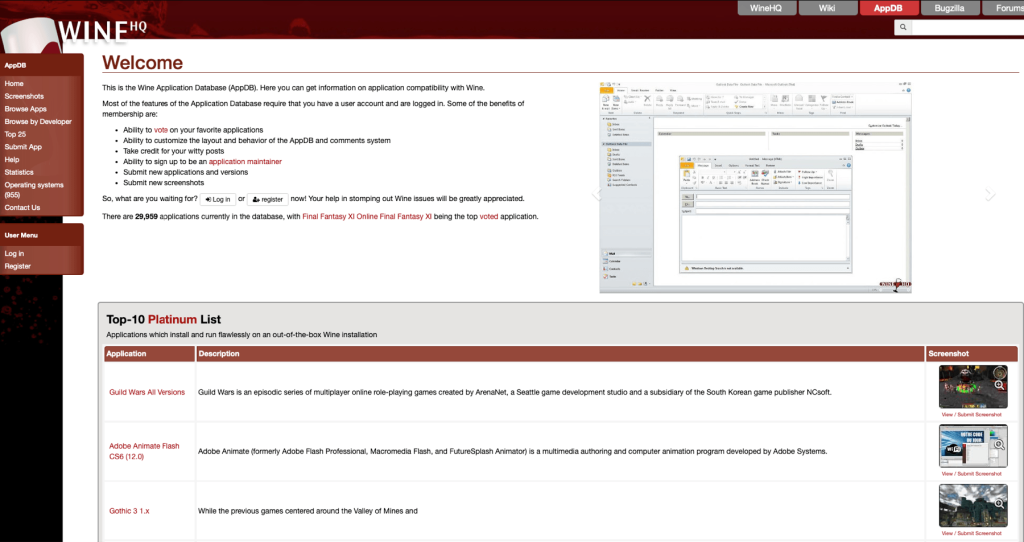
For Ubuntu or Debian, install the official Wine stable build with 32-bit support enabled because many MT4 components rely on legacy 32-bit libraries. Begin by enabling the `i386` architecture and updating APT:
sudo dpkg --add-architecture i386
sudo apt update
Check your current archicture:
dpkg --print-foreign-architectures
Expected output should include:
i386
Add the WineHQ signing key and repository. For Ubuntu:
sudo mkdir -pm755 /etc/apt/keyrings
sudo wget -O /etc/apt/keyrings/winehq-archive.key https://dl.winehq.org/wine-builds/winehq.key
sudo wget -NP /etc/apt/sources.list.d/ https://dl.winehq.org/wine-builds/ubuntu/dists/$(. /etc/os-release; echo $UBUNTU_CODENAME)/winehq-$(. /etc/os-release; echo $UBUNTU_CODENAME).sources
sudo apt update
For Debian:
sudo mkdir -pm755 /etc/apt/keyrings
sudo wget -O /etc/apt/keyrings/winehq-archive.key https://dl.winehq.org/wine-builds/winehq.key
sudo wget -NP /etc/apt/sources.list.d/ https://dl.winehq.org/wine-builds/debian/dists/$(. /etc/os-release; echo $VERSION_CODENAME)/winehq-$(. /etc/os-release; echo $VERSION_CODENAME).sources
sudo apt update
Now install Wine stable:
sudo apt install --install-recommends winehq-stable
After installation, verify Wine is available:
wine --version
Expected output will be similar to:
wine-9.0
A valid version confirms that Wine is installed correctly and your Linux system is ready for MetaTrader.
Set Up Wine Environment on macOS
On macOS, start by installing XQuartz to provide the X11 display server needed by Wine. Without XQuartz, MT4/MT5 installers might display a blank screen.
If you use Homebrew:
brew install --cask xquartz
Alternatively, download and install XQuartz from the official site. Then confirm the installation with:
open -a XQuartz
Install Wine, PlayOnMac, or CrossOver
For a command-line setup on macOS, install Wine with Homebrew:
brew install --cask wine-stable
If `wine-stable` isn’t available, try searching for it with:
brew search wine
For a graphical interface, consider using PlayOnMac or CrossOver.
Initialize the Wine Prefix
Create the initial Wine prefix (the simulated Windows environment, usually located at `~/.wine`):
bash
winecfg
On first launch, Wine creates the necessary folders and registry files. Verify that the prefix was created:
bash
ls -la ~/.wine
Expected output should show directories like `drive_c` and `dosdevices`, indicating that your macOS Wine environment is ready for MetaTrader.
Download the MetaTrader Installer
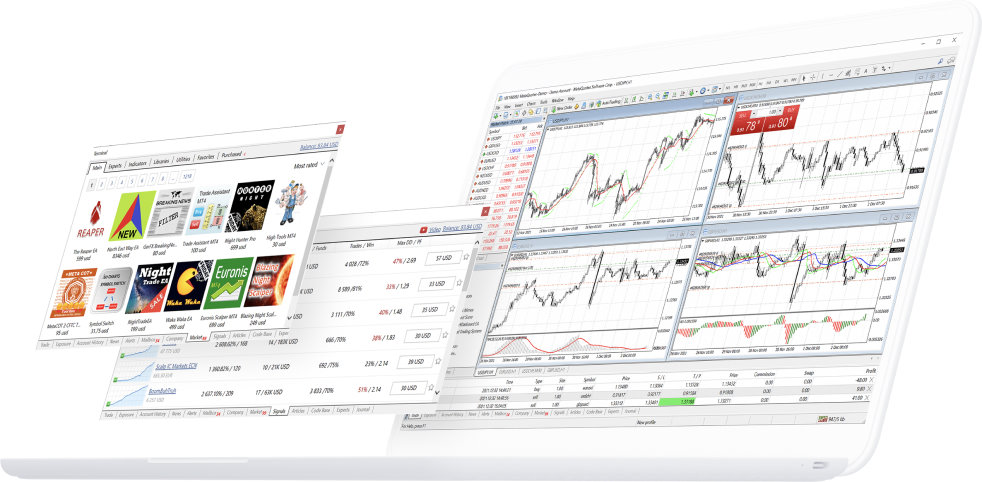
Download the correct Windows installer file (ending in .exe) from the official MetaQuotes page or your broker’s download page. For MT4, the file might be named `mt4setup.exe`; for MT5, it could be `mt5setup.exe`. Opt for the 32-bit installer if available to ensure better compatibility with Wine.
Save the installer in a convenient location (such as `~/Downloads`) and verify the file with:
ls -lh ~/Downloads/setup.exe
The installer filename (for example, `mt4setup.exe`) should be visible, confirming a successful download.
Run the MT4/MT5 Installer with Wine
Navigate to the directory where the installer is saved and launch it with Wine. For MT4:
cd ~/Downloads
wine mt4setup.exe
For MT5:
cd ~/Downloads
wine mt5setup.exe
Within 5 to 20 seconds, Wine should launch the Windows-style setup window. Follow through the license agreement and proceed with the setup. By default, Wine maps Windows paths to your home directory (typically `~/.wine/drive_c/Program Files/MetaTrader 4` for MT4 and a similar path for MT5). Verify the installation with:
ls -la ~/.wine/drive_c/Program\ Files/
Look for the MetaTrader folder to confirm a successful installation.
Customize Install Path for Multiple Accounts
If you plan to run more than one instance of MT4/MT5, select a different install folder during setup (for example, `C:\Program Files\MT4-12345678` for MT4). This helps keep installations separate and prevents configuration conflicts. Verify your custom path with:
find ~/.wine/drive_c/Program\ Files -maxdepth 1 -type d | grep MT4
Expected output should display your custom folder name.
Create and Trust Desktop Shortcuts
Sometimes MetaTrader may not appear in your application menu if the launcher file (a `.desktop` file) isn’t trusted. You can check for the launcher file with:
ls -lah ~/.local/share/applications
grep -i -E 'meta mt4 mt5'
ls -lah ~/Desktop
grep -i -E 'meta mt4 mt5'
If you locate the launcher (for example, `metatrader-4.desktop`), ensure it is executable. On Linux, set the executable permission via your file manager or using:
chmod +x ~/.local/share/applications/.desktop ~/Desktop/.desktop 2>/dev/null
Alternatively, you can trust the launcher by right-clicking and selecting “Allow Launching.” To improve menu integration, copy the shortcut to your local applications directory:
cp ~/Desktop/*.desktop ~/.local/share/applications/
chmod +x ~/.local/share/applications/*.desktop
Launch MetaTrader and Perform Initial Configuration
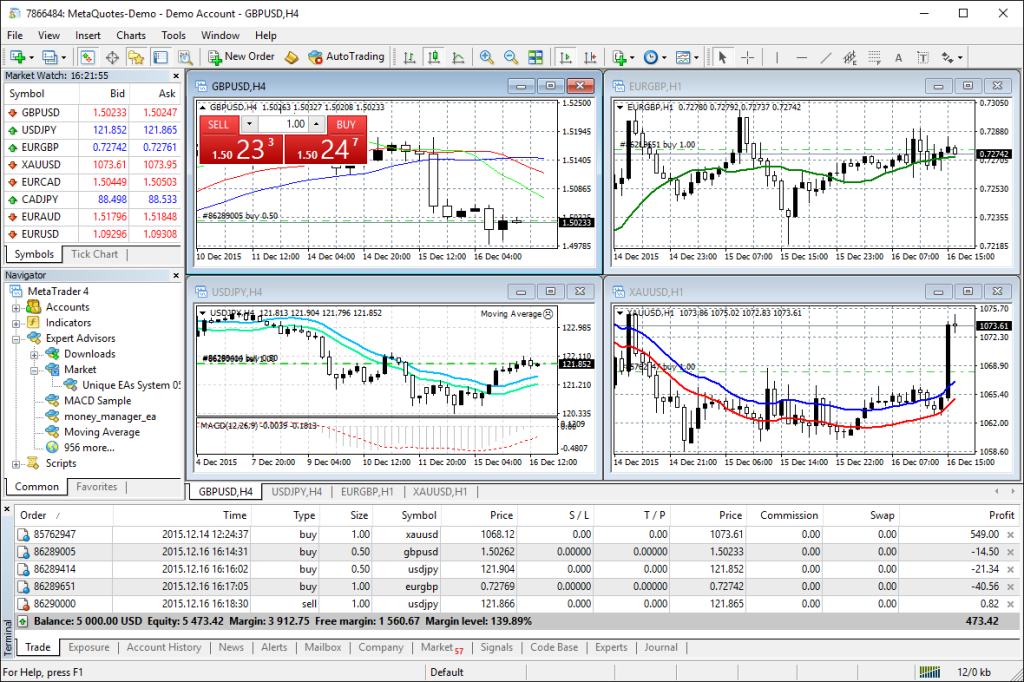
Once the desktop shortcut is trusted, launch MetaTrader from the application menu or desktop. If issues occur, start it from the Terminal to review Wine’s output. For MT4:
wine ~/.wine/drive_c/Program\ Files/MetaTrader\ 4/terminal.exe
For MT5:
wine ~/.wine/drive_c/Program\ Files/MetaTrader\ 5/terminal64.exe
Upon launching, the “Login to Trade Account” dialog will appear. Enter your Login, Password, and Server details accurately. You can refresh the server list using the drop-down if needed.
After logging in, check where MetaTrader stores its data by navigating to File > Open Data Folder. Typically, on Linux or macOS with the default Wine prefix, this is located at:
~/.wine/drive_c/users/$USER/Application Data/MetaQuotes/Terminal/
Record this location for future backups or migrations.
Troubleshoot Common Installation Issues
If MetaTrader does not function correctly, try the following troubleshooting steps before reinstalling:
|
Symptom |
Check / Trigger |
Action (Fix) |
|---|---|---|
|
Untrusted application launcher |
Double-click shows warning |
Fix .desktop trust + make file executable |
|
Blank screen / asks for Mono or Gecko |
Installer prompt or empty UI |
Install wine-mono and Gecko via winetricks |
|
Previously worked but now crashes / slow |
Performance degraded after updates |
Clear Wine prefix temp files + update Wine |
|
No launcher appears |
No shortcut created |
Check ~/.local/share/applications and recreate launcher |
If the Shortcut is “Untrusted”
On Linux, if the launcher isn’t executable, run:
chmod +x ~/.local/share/applications/.desktop ~/Desktop/.desktop 2>/dev/null
Then verify:
gio info ~/.local/share/applications/*.desktop | grep "access::can-execute"
Expected output should indicate `access::can-execute: TRUE`.
If Wine Requests Mono or Gecko
Install these components via winetricks:
winetricks -q mono gecko
If winetricks isn’t installed yet:
sudo apt install winetricks
Verify the installation with:
winetricks list-installed
grep -E 'mono	gecko'
If MetaTrader Crashes, Hangs, or Is Slow
A cluttered Wine prefix may cause performance issues. Clean temporary files without removing the entire environment:
rm -rf ~/.wine/drive_c/users/$USER/Temp/*
rm -rf ~/.cache/wine/*
Then update Wine:
sudo apt update && sudo apt install --install-recommends winehq-stable
Confirm the Wine version with:
wine --version
If issues persist, run the executable directly to view error messages:
wine ~/.wine/drive_c/Program\ Files/MetaTrader\ 4/terminal.exe
Running MT4 through Wine works — but if you’d rather skip the compatibility layer entirely and get a clean, native Windows trading environment, HostStage’s Forex Windows VPS plans are worth a look. You get full MT4 and MT5 support out of the box, no Wine configuration required, with servers across major trading regions including the USA (Atlanta, Los Angeles), Europe (Amsterdam, Frankfurt, Sofia, and more), Africa (Lagos), and Asia (Singapore, Tokyo, Fujairah, Mumbai). Plans start from only $15.95/month.
FAQ
Q: What are the system requirements for installing MT4/MT5 using Wine?
A: You need Ubuntu 20.04+/Debian 11+ (or macOS 10.15+), Wine 8.0+ (preferably 9.x), at least 2 GB RAM (4 GB recommended on macOS), 3 GB free disk space, and admin (sudo) rights.
Q: How do I install Wine on Ubuntu or Debian?
A: Enable 32-bit support with `sudo dpkg –add-architecture i386`, update APT, add the WineHQ repository and key, then install with `sudo apt install –install-recommends winehq-stable`.
Q: What should I do if MetaTrader doesn’t launch after installation?
A: Check if the desktop shortcut is trusted, install missing components (mono/gecko) via winetricks, or clear temporary files in the Wine prefix and update Wine.
Q: How can I set up desktop shortcuts for MetaTrader on Linux?
A: Locate the `.desktop` file in `~/.local/share/applications` or on your Desktop, ensure it’s executable (via file properties or by using chmod), and copy it to the local applications folder if necessary.