

Set Up MT4/MT5 on a Windows VPS (Step-by-Step)
If you’re a forex trader relying on MT4 or MT5, a Windows VPS can solve common issues like internet outages, system sleep, or unexpected shutdowns. This guide explains how to set up and optimize MT4/MT5 on a VPS for reliable, 24/5 trading. You’ll learn:
- Why a VPS is essential: Ensures uninterrupted trading, reduces latency to 0–5 ms near broker servers, and eliminates local hardware risks.
- System requirements: MT5 now requires 64-bit Windows (2019/2022). For smooth operation, aim for at least 2.5 GHz CPU, 4 GB RAM, and NVMe storage.
- Setup steps: From connecting via RDP to installing MetaTrader, configuring auto-start, and enabling Expert Advisors.
- Performance tips: Adjust CPU priority, minimize resource use, and schedule reboots for consistent performance.
- Security essentials: Change passwords, restrict RDP access, and automate backups to protect data and credentials.
System Requirements for MT4/MT5 on Windows VPS
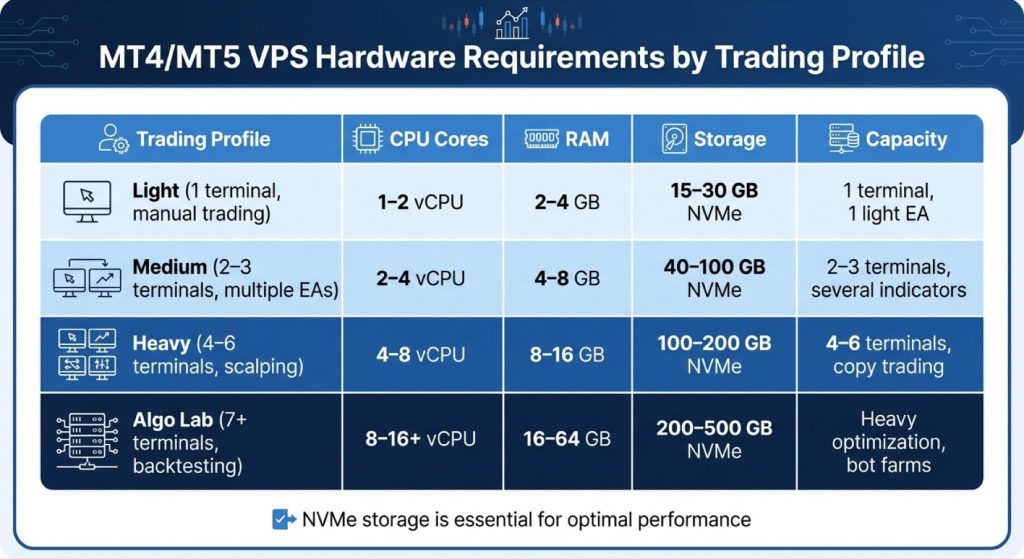
Hardware Specifications: Minimum vs. Recommended
To run MetaTrader effectively, the bare minimum is a 1 GHz CPU and 2 GB of RAM. However, if you’re using indicators or Expert Advisors (EAs), you’ll need more robust hardware to handle the demands of a 24/5 trading environment. In September 2023, MetaQuotes released MT5 build 3930, which eliminated support for 32-bit systems. As of January 1, 2024, 32-bit versions no longer function, making a 64-bit Windows Server (2019 or 2022) essential for running the latest MetaTrader builds.
For optimal performance, aim for 2.5–3.5 GHz or higher single-core clock speeds. Since MetaTrader primarily operates on a single thread, a faster core is more beneficial than additional cores, especially during high-pressure moments like news-driven market volatility. Storage is another critical factor – NVMe or SSD drives are non-negotiable. Using HDDs can severely slow down chart updates, log writes, and historical data loading, particularly when running multiple terminals or backtesting strategies.
Memory requirements also depend on your trading setup. For a single MetaTrader terminal, allocate at least 4 GB of RAM, and add 1–2 GB for each additional instance. Always keep around 20% memory free to handle unexpected spikes in usage – like when a surprise announcement from the Bank of Japan jolts the market at 3 a.m. For heavy optimizations or managing multiple bots, you might need 16–32 GB or more.
| Trading Profile | CPU Cores | RAM | Storage | Capacity |
|---|---|---|---|---|
| Light (1 terminal, manual trading) | 1–2 vCPU | 2–4 GB | 15–30 GB NVMe | 1 terminal, 1 light EA |
| Medium (2–3 terminals, multiple EAs) | 2–4 vCPU | 4–8 GB | 40–100 GB NVMe | 2–3 terminals, several indicators |
| Heavy (4–6 terminals, scalping) | 4–8 vCPU | 8–16 GB | 100–200 GB NVMe | 4–6 terminals, copy trading |
| Algo Lab (7+ terminals, backtesting) | 8–16+ vCPU | 16–64 GB | 200–500 GB NVMe | Heavy optimization, bot farms |
These guidelines will help you choose the right hardware to match your trading workload.
How to Choose Your VPS Plan
Your VPS plan should align with your trading style rather than just your budget. For example, if you’re running a single EA on one broker account, a 1–2 vCPU plan with 2–4 GB of RAM will suffice. Entry-level Windows VPS plans typically cost between $6.00 and $8.95 per month. However, if you’re managing three terminals with custom indicators and a scalping EA, this setup will quickly hit its limits. A good rule of thumb: allocate 1 vCPU per active terminal and consider upgrading if your CPU usage consistently exceeds 70–80%.
Location matters just as much as specifications. If your broker’s servers are in New York’s NY4 data center, a VPS in Frankfurt won’t help reduce latency. Instead, choose a provider with servers close to your broker’s infrastructure – LD4 (London), NY4 (New York), or TY3 (Tokyo) are common hubs. Ideally, latency should stay under 10 milliseconds. Providers like ours offer 18 global locations, including Frankfurt, Tokyo, and Atlanta, ensuring you can host your VPS just milliseconds away from major liquidity providers. If you’re trading across multiple brokers, pick a region that covers most of your accounts, or consider splitting your terminals across two VPS instances if latency arbitrage is part of your strategy.
Once you’ve chosen the right hardware and VPS plan, you’re ready to connect via Remote Desktop and start trading with confidence.
Connecting to Your Windows VPS via Remote Desktop
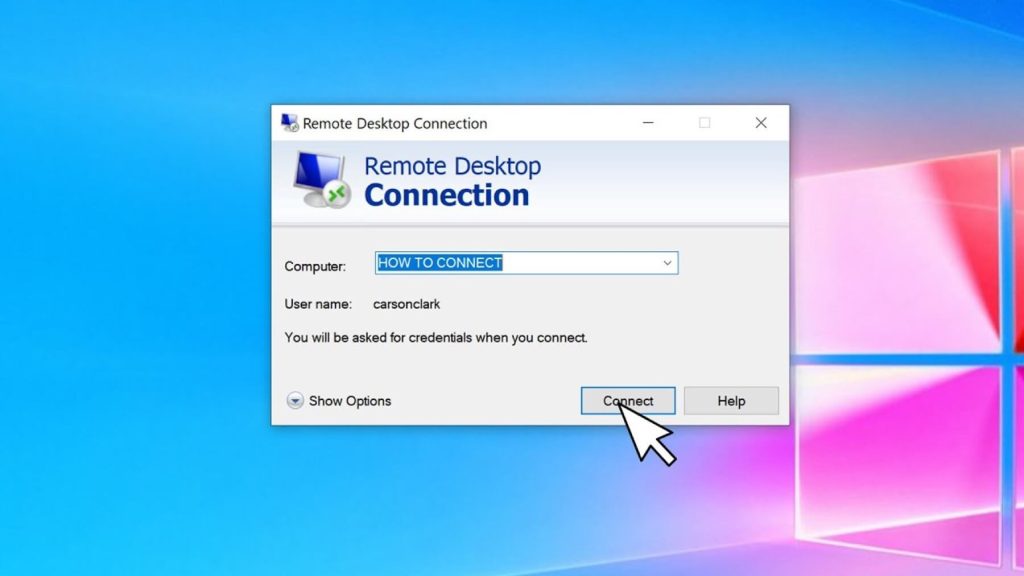
How to Connect Using RDP
Once your VPS is set up, you’ll receive an email containing three key details: the IP address, the username (usually “Administrator”), and a temporary password. If you’re on Windows, you can open the “Remote Desktop Connection” tool by typing it into the Start menu or pressing Win + R and entering mstsc. Enter the VPS IP, username, and password. Before connecting, click on the “Local Resources” tab, then “More”, and check the “Drives” box. This enables file transfers between your computer and the VPS.
If you’re using macOS or Linux, download the Microsoft Remote Desktop app from your app store. Add a new PC, input the IP address, and save your login credentials. macOS users with high-resolution displays should tweak the connection settings to match their screen resolution for better text clarity.
For those experiencing unstable connections, head to the “Experience” tab and turn off window animations and visual effects. On the other hand, if you have a stable fiber connection, leave “True Color (32-bit)” enabled for sharper visuals. If responsiveness is more important, you can switch to “High Color (16-bit)” for a smoother experience.
Once connected, it’s essential to secure your VPS before installing any trading software.
Basic Security Setup After First Login
After logging in via RDP, your first step should be to secure your VPS. Start by changing the default Administrator password to something strong and unique. Avoid reusing passwords from other accounts. If you’re managing multiple VPS systems, consider using a password manager like Bitwarden or 1Password to keep track of your credentials.
Next, configure Windows Firewall to restrict RDP access to your home or office IP address. Navigate to Windows Defender Firewall > Advanced Settings > Inbound Rules, find “Remote Desktop – User Mode (TCP-In)”, right-click it, choose “Properties”, and under the “Scope” tab, add your static IP to the allowed list. This step protects against brute-force login attempts by blocking access from unknown IPs. Additionally, change the default RDP port from 3389 to a custom port (e.g., 33890) to make unauthorized access attempts less likely.
For added security, rename the default “Administrator” account and create a new, limited account for daily use. Go to Computer Management > Local Users and Groups > Users, right-click “Administrator”, and select “Rename” (e.g., “TradingAdmin”). Then, create a separate user account for routine tasks to minimize risks. Lastly, install all pending Windows updates immediately and make it a habit to check for updates every 72 hours, preferably during off-market hours.
Installing MT4/MT5 on Your VPS
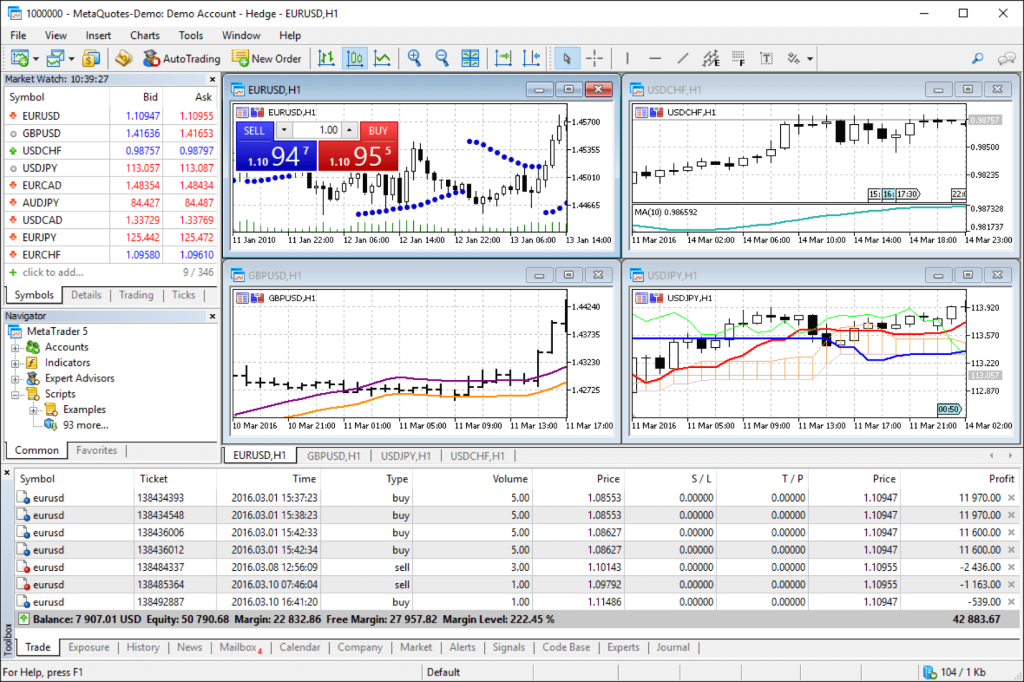
Where to Download MT4/MT5 Safely
To start installing MetaTrader, you’ve got two options for downloading: broker-branded installers or official buildsfrom MetaQuotes. For most traders, downloading directly from your broker’s client portal is the easiest route. These versions are tailored for your broker, pre-loaded with server addresses and trading symbols, so you won’t have to manually input server names. Simply log in to your broker’s dashboard, find the downloads section, and grab the installer (e.g., mt4setup.exe or mt5setup.exe).
If you’d rather go for a clean, generic installation, visit metatrader4.com or metatrader5.com for the official MetaQuotes builds. This option is ideal if you’re testing accounts with multiple brokers or switching brokers often. However, you’ll need to manually input your broker’s server address during login. Whatever route you choose, double-check the URL before downloading to ensure it’s legitimate. Avoid third-party sites or forum links, as they may host compromised software.
Important: MT5 now only supports 64-bit systems, so make sure your VPS runs a 64-bit operating system, such as Windows Server 2019 or 2022.
Once you’ve downloaded the right installer, you’re ready to install and set up the platform.
Installation Process and Broker Login
After downloading your installer, follow these steps to set up MetaTrader securely and efficiently. First, run the installer as Administrator to ensure all components and registry keys are installed properly. The setup wizard is straightforward: accept the license agreement, pick your installation path (the default C:\Program Files\ works fine for most users), and let the wizard complete the process. If you plan to run multiple instances, use the /portable flag when launching the terminal (e.g., terminal.exe /portable). This keeps all your data – like EAs, logs, and profiles – within the installation folder, simplifying backups and migrations.
Once the installation finishes, MetaTrader should launch automatically. You’ll see a login window asking for your account number, password, and server name. If you downloaded a broker-specific version, the server dropdown will already list your broker’s options. Choose the correct server (this information is usually in your broker’s welcome email), enter your credentials, and log in. If everything is set up correctly, you’ll see live price quotes in the “Market Watch” window and a “Login successful” message in the “Journal” tab at the bottom.
If you run into connection issues, double-check your credentials and ensure your terminal isn’t being blocked by Windows Firewall. To fix this, go to Windows Defender Firewall > Allow an app through firewall, click “Change settings”, then “Allow another app”, and add the MetaTrader executable. Additionally, confirm that .NET Framework is enabled by navigating to Control Panel > Programs > Turn Windows features on or off. If problems persist, your broker’s support team can help you confirm the correct server name and resolve authentication issues.
Setting Up Auto-Start and Continuous Operation
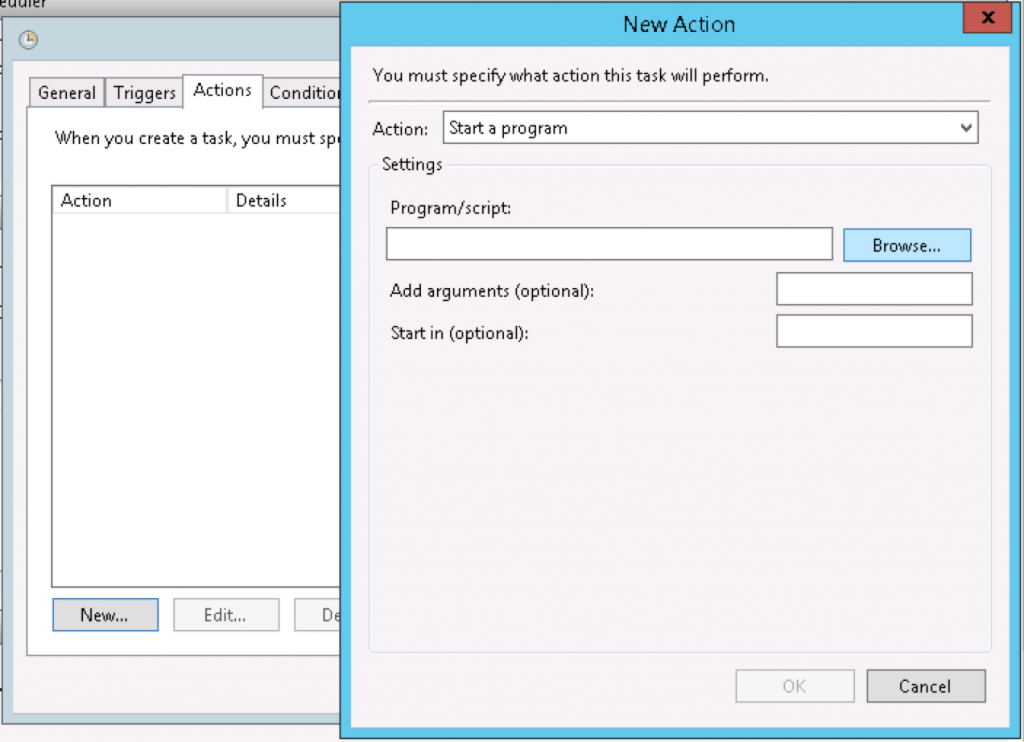
Configure MT4/MT5 to Start at Boot
After installing and logging into MetaTrader, it’s important to ensure it launches automatically whenever your VPS restarts. This could happen due to scheduled maintenance, Windows updates, or unexpected reboots. The easiest way to do this is by adding a shortcut to the Windows Startup folder. Here’s how:
- Press Win + R to open the Run dialog, type shell:startup, and press Enter. This will open the startup folder for your user account.
- Create a shortcut for your MetaTrader executable (e.g., C:\Program Files\MT5\terminal64.exe) and place it in this folder.
If you’re running multiple terminals, include the /portable flag in the shortcut’s target field. For instance: “C:\Program Files\MT5\terminal64.exe” /portable. This ensures each terminal keeps its data separate.
Keep in mind that the Startup folder only activates after a user logs in. To bypass the login step, enable auto-login using tools like netplwiz or Microsoft’s Sysinternals Autologon. This ensures MetaTrader starts even when no one manually logs in.
For more robust control, especially to handle potential crashes, use Windows Task Scheduler. Here’s a quick setup guide:
- Open Task Scheduler and create a new task.
- Set the trigger to “At system startup” or “At logon.”
- Point the action to your MetaTrader executable.
- Configure the task to run with the highest privileges and set it to work regardless of login state.
- In the “Settings” tab, enable “If the task fails, restart every 1 minute” and allow up to three retries.
If you’re managing multiple terminals, stagger their launches to avoid overwhelming your VPS. You can do this via Task Scheduler by adding delays or using a batch script with timeout commands, such as timeout /t 15 /nobreak, to space out launches by 10–20 seconds.
Once MetaTrader is set to launch automatically, the next step is ensuring your trading tools, like Expert Advisors and indicators, start without any manual intervention.
Auto-Start Expert Advisors and Indicators
Getting MetaTrader to open automatically is just the first step. You’ll also need to make sure your Expert Advisors (EAs)and custom indicators load and start trading without any manual input.
Start by enabling algorithmic trading in MetaTrader:
- Go to Tools > Options > Expert Advisors and check “Allow algorithmic trading” (MT5) or “Allow automated trading” (MT4).
- If your EA requires external libraries or web requests, also enable “Allow DLL imports” and “Allow WebRequest for listed URL.” Without these settings, your EA won’t function, even if the platform is running.
Next, save your workspace as a Profile. Arrange your charts, attach your EAs and indicators, and then go to File > Profiles > Save As. Assign a name like “Live Trading” to this profile. When MetaTrader restarts, it will reload the exact configuration, including chart layouts, timeframes, and active EAs.
To ensure MetaTrader loads a specific profile automatically on startup, modify your shortcut or Task Scheduler action to include the /profile:Name flag. For example: “C:\Program Files\MT5\terminal64.exe” /profile:”Live Trading”.
If account data or EA settings fail to load after an automated reboot, the issue might be related to User Account Control (UAC). Windows can block applications from accessing their data folders when launched without an active remote desktop session. To resolve this:
- Go to Control Panel > User Accounts > Change User Account Control settings and set the slider to “Notify me only when apps try to make changes to my computer” (Level 1). This adjustment grants MetaTrader the necessary permissions.
| Feature | Setting/Path | Purpose |
|---|---|---|
| Auto-Login | netplwiz or Sysinternals Autologon | Skips the Windows login screen on reboot |
| Startup Folder | shell:startup | Launches MT4/MT5 automatically post-login |
| EA Options | Tools > Options > Expert Advisors | Enables algorithmic trading and DLL imports |
| Portable Mode | terminal.exe /portable | Keeps EA and indicator data in one folder |
| UAC Level | Level 1 (Notify only) | Prevents permission issues during startup |
Optimizing VPS Performance for Trading
Adjusting CPU and RAM Allocation
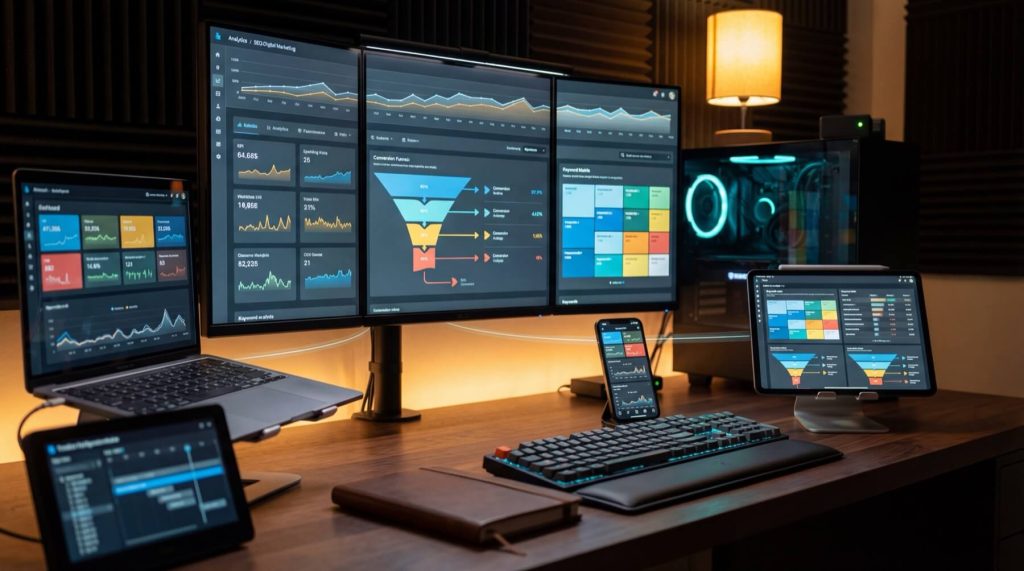
Fine-tuning your VPS settings is essential for ensuring smooth MetaTrader performance. Start by switching your Windows Power Plan to High Performance. To do this, press Win + R, type powercfg.cpl, and select the High Performance option. This adjustment ensures your CPU operates at full capacity during critical trading moments.
Next, open Task Manager (Ctrl + Shift + Esc), locate the MetaTrader process under the “Details” tab, right-click it, and set the priority to High. This step ensures MetaTrader gets priority over less important tasks like Windows updates or antivirus scans. For added efficiency, add the MT4/MT5 installation folders to the Windows Defender exclusion list – this minimizes delays in order execution caused by unnecessary scans.
Inside MetaTrader, go to Tools > Options > Charts and lower the values for “Max bars in history” and “Max bars in charts” to either 1 or 1,000. This small tweak can significantly reduce RAM usage, especially if you’re not running backtests. Also, uncheck options like “Show trade levels” and “Show OHLC” to reduce the system’s rendering workload. When you’re not actively using the terminal, minimize it to save CPU resources.
For resource allocation, assign 2 vCPU cores and 2–4 GB of RAM per terminal. If you’re running multiple terminals (e.g., 2–3), consider increasing to 4 cores and 4–8 GB of RAM. For setups involving more terminals, splitting them across separate Windows user accounts can help isolate resources, ensuring a crash in one terminal doesn’t disrupt others. Running 7 or more terminals? It might be time to upgrade to a dedicated server for better performance.
Once these optimizations are in place, monitor your system regularly to identify and address any performance bottlenecks.
Monitoring System Resources
Keeping an eye on system resources is crucial, especially during peak trading periods like the London/New York overlap (8:00 AM–12:00 PM EST). Open Task Manager and check the “Performance” tab to ensure CPU usage stays below 70%. If you notice frequent spikes, it could mean your VPS plan is overloaded or you’re dealing with “noisy neighbors” on a shared VPS.
RAM usage is just as important. Always aim to have at least 30% free memory available. Low memory can force Windows to page to disk, potentially freezing your terminal during high-volatility events. Use the Processes tab in Task Manager to spot any memory-intensive applications – rogue Expert Advisors (EAs) or indicators may slowly consume memory over time, leading to performance issues.
Don’t overlook the Journal tab in MetaTrader. Frequent disconnects, heartbeat ping failures, or EA-specific errors could signal network problems or resource limitations that Task Manager might not immediately reveal. Additionally, periodically check your MQL4/5\Logs folder. Log files can grow over time and may strain your disk’s input/output performance. Automate log management by using Task Scheduler to run a monthly script that compresses and archives old logs.
To maintain peak performance, schedule a weekly reboot during market close, such as Friday at 5:00 PM EST or Sunday before the markets reopen. This clears memory leaks and refreshes system resources. Use Task Scheduler to automate this process with the command shutdown /r /f /t 0 for a clean and efficient restart.
Reducing Network Latency for Faster Trade Execution
Why NTP Time Synchronization Matters
Precision timing is essential for scalping and arbitrage strategies. Even a slight drift in time synchronization can throw off Expert Advisor (EA) signals, causing missed opportunities or errors in order execution. For instance, if your VPS clock isn’t perfectly aligned, EAs relying on time-sensitive calculations or expiration-based orders might malfunction.
Windows Server relies on the w32time service for time synchronization. To ensure it’s working correctly, press Win + R, type services.msc, and locate Windows Time. Right-click it, select Properties, and set the startup type to Automatic. Then, open an elevated Command Prompt and execute w32tm /resync /force to immediately sync your clock with atomic time sources. For ongoing accuracy, configure reliable NTP servers by running:
w32tm /config /manualpeerlist:”time.windows.com,0x8 time.nist.gov,0x8″ /syncfromflags:manual /reliable:YES /update.
To monitor synchronization, use the command w32tm /query /status. Check the “Last Successful Sync Time” field – if it’s over an hour old during active trading, there’s likely an issue. Keeping your system clock in sync with your broker’s servers ensures precise trade timestamps, reducing the risk of discrepancies during high-volatility periods.
Once your time synchronization is solid, the next step is optimizing your network settings to further cut down latency.
Network Configuration Tweaks
Proximity matters. If your broker’s trade server is in London’s LD4 data center, hosting your VPS in Los Angeles will result in unnecessary delays. To minimize latency, host your VPS in the same region as your broker’s infrastructure. Ideally, aim for a latency of 0–5 ms. With 18 global locations, including New York, London, Frankfurt, Tokyo, and Singapore, you can choose a VPS location that aligns closely with your broker’s servers. For a low-latency setup, a stable ping of 5–15 ms is the benchmark.
After selecting the right location, fine-tune your network adapter settings. Navigate to Control Panel > Network and Sharing Center > Change adapter settings, right-click your Ethernet adapter, and choose Properties. Click Configureand go to the Advanced tab. Disable “Large Send Offload (LSO)” and “Flow Control,” as these can introduce delays. Also, turn off “Interrupt Moderation” to speed up packet processing, even if it slightly increases CPU usage.
For additional performance gains, adjust your system settings. Press Win + Pause, go to Advanced system settings, and under the Performance section, click Settings. In the Advanced tab, switch processor scheduling to “Background services” to prioritize MT4/MT5 backend processes over other tasks. Within MetaTrader itself, navigate to Tools > Options > Server and uncheck “Enable news” – this reduces bandwidth and CPU usage, keeping resources focused on order execution.
Lastly, when accessing your VPS via Remote Desktop Protocol (RDP), disable unnecessary visual features like “Font smoothing,” “Desktop composition,” and “Window contents while dragging” under the Experience tab. This helps conserve bandwidth and ensures smoother performance.
Securing Your Trading Environment
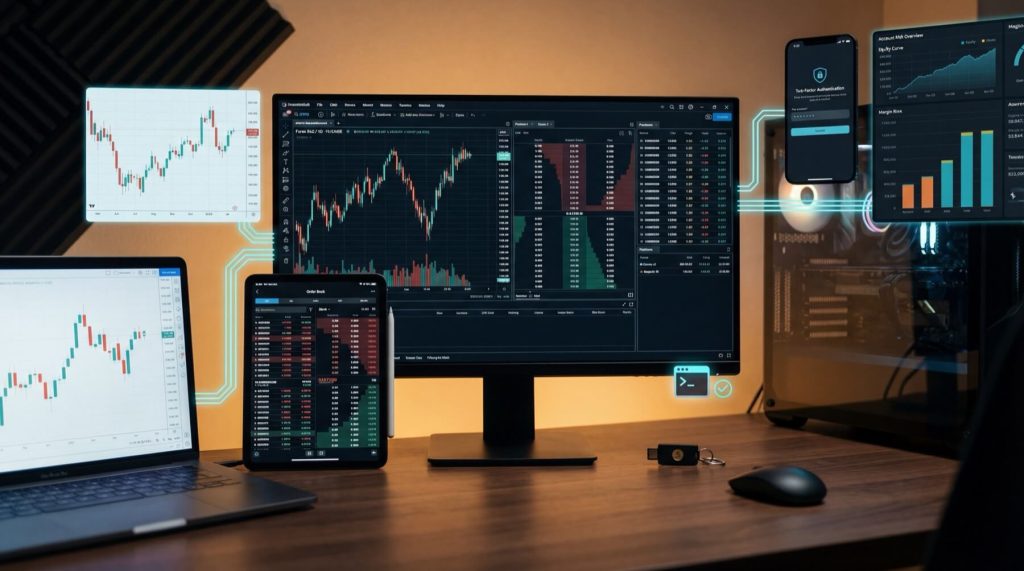
Once you’ve optimized performance, the next step is to ensure your trading environment is secure. Protecting sensitive data is crucial to maintaining the integrity of your trading operations.
Protecting Account Credentials and Trading Data
Safeguarding your VPS is essential for keeping your broker credentials and funds secure. Start by tightening your Remote Desktop Protocol (RDP) access. Enable Network Level Authentication (NLA) through System Properties under the Remote tab, and configure Windows Firewall to allow connections only from trusted IP addresses.
For daily trading, use a limited user account instead of the Administrator account. This reduces the risk of significant damage if malware compromises your system. On top of that, enable Two-Factor Authentication (2FA) on your broker portal using tools like Google Authenticator or Authy. This adds an extra layer of protection for your funds, even if your VPS is compromised.
Run MetaTrader 4 or MetaTrader 5 in portable mode (using the /portable flag) to keep all trading data in one folder, such as D:\Trading\MT5_BrokerX. This setup simplifies encryption. Use tools like BitLocker or VeraCrypt to encrypt the folder, and store the encryption key securely off-server.
To further secure your system, close all unnecessary ports in Windows Firewall – only leave port 443 open for HTTPS traffic. Add exclusions in Windows Defender for your MT4/MT5 folders to avoid performance slowdowns during scans. Lastly, schedule Windows updates during non-trading hours, such as weekends, to prevent unexpected system restarts.
Setting Up Automated Backups
A hard drive failure or a corrupted Expert Advisor (EA) can result in the loss of months of work, including custom indicators and trading configurations. To avoid this, follow the 3-2-1 backup rule: maintain three copies of your data, stored on two different types of media, with one copy kept off-server.
Focus on backing up critical MT4/MT5 folders, such as MQL4/MQL5, templates, profiles, config, and history. To find these folders, open MetaTrader and navigate to File > Open Data Folder – this will reveal the exact path, often hidden within %appdata%.
Use Windows Task Scheduler to automate the creation of ZIP archives for these folders. Set it to create backups hourly during trading hours and perform a full backup weekly. Save these backups in a dedicated directory, such as C:\MT5\Backups\YYYY-MM-DD\, and sync this folder with cloud storage services like OneDrive or Google Drive for off-site redundancy. This ensures your data is safe and accessible, even in the event of hardware failure.
Conclusion
You’ve successfully turned your Windows VPS into a reliable and efficient forex trading system. By carefully selecting hardware specifications, tightening security measures, and reducing latency, you’ve set the stage for smoother and more consistent trading. A well-configured VPS ensures your Expert Advisors (EAs) operate around the clock, your trades execute quickly with minimal delays, and your data stays secure from hardware failures and potential security breaches.
What separates a casual setup from a professional one is reliability. Features like auto-start, time synchronization, and automated backups aren’t just conveniences – they’re essential for uninterrupted trading. Together, these elements create a stable environment that supports your trading strategy. Hosting your VPS close to your broker’s servers further reduces latency, giving you a noticeable edge over time, especially when trading at scale. With enterprise-level uptime and security, you’re eliminating the risks of missed opportunities and unnecessary slippage.
Start by securing your RDP connection, installing MT4 or MT5 in portable mode, and setting up auto-start functionality. Then, focus on performance: disable unnecessary visual effects, keep at least 20% of your RAM free, and schedule reboots during the weekend when markets are closed. Finally, fortify your setup with encrypted data folders and automated backups. Your trading system should work as tirelessly as you do, supporting your strategy with precision and dependability.





xn88: Hướng dẫn tối ưu cược và đánh giá độ tin cậy trong casino trực tuyến tự hào có tỷ lệ giữ chân khách hàng cao nhất nhờ chính sách bảo vệ người chơi và dịch vụ cá cược chuyên nghiệp hàng đầu châu Á. (Tương tự cho đến đoạn 20, thay đổi cách diễn đạt về: niềm tin, an toàn, hợp pháp) TONY03-11O