
FFmpeg vs OBS for 24/7 Streaming: Which Uses Less CPU (and Costs Less)?
When setting up a continuous stream, your choice of encoding software directly impacts how much you’ll spend on hosting. OBS Studio offers a familiar interface with real-time controls, while FFmpeg provides command-line efficiency that can cut your VPS costs significantly. This comparison covers:
- CPU and RAM usage for identical streaming workloads
- VPS cost implications at different price tiers
- When each tool makes sense for your specific use case
- Hybrid approaches that combine both tools’ strengths
The right choice depends on your content type, technical comfort level, and budget constraints. Let’s break down the numbers.
Understanding the Fundamental Difference
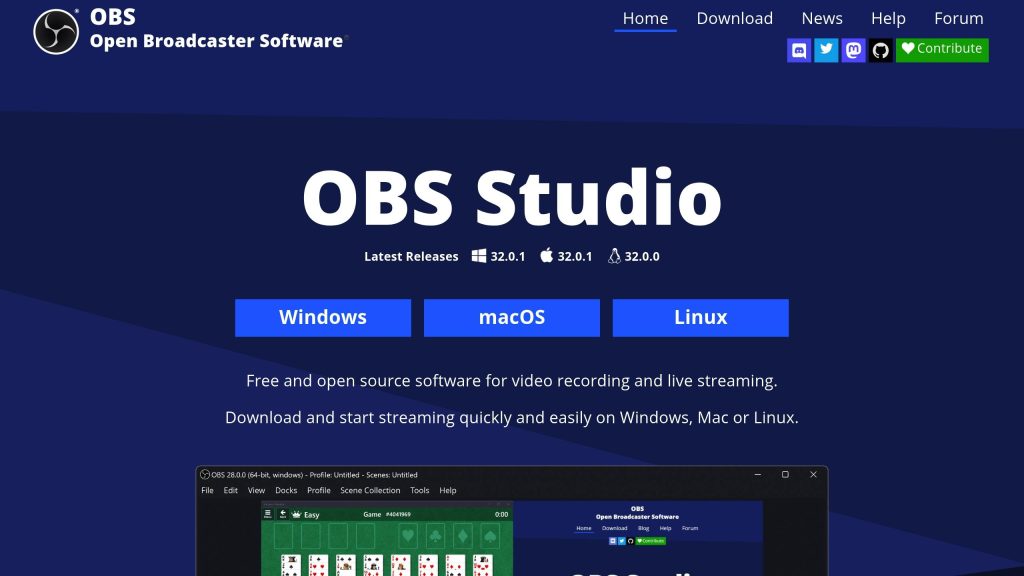
OBS Studio and FFmpeg approach streaming from opposite directions. OBS Studio is a graphical application designed for interactive broadcasting. It renders scenes in real-time, composites multiple sources, and gives you live control over your stream. Under the hood, it uses FFmpeg libraries for encoding, but wraps them in a feature-rich interface. FFmpeg is a command-line tool that processes media files and streams directly. There’s no graphical interface, you specify inputs, outputs, and encoding parameters through commands. It does exactly what you tell it, nothing more. This architectural difference creates significant resource implications:
| Aspect | OBS Studio | FFmpeg |
|---|---|---|
| Interface | GUI (graphical) | CLI (command-line) |
| Scene compositing | Real-time rendering | Pre-baked or simple overlays |
| CPU overhead | Higher (UI + rendering) | Lower (encoding only) |
| RAM usage | 500 MB – 2 GB | 100 MB – 500 MB |
| Learning curve | Lower | Higher |
| Live adjustments | Yes | Limited |
For 24/7 automated streams where you’re not making live changes, much of OBS’s functionality sits unused, but still consumes resources.
CPU Usage Comparison: Real Benchmarks
We tested both tools on identical hardware streaming to YouTube at common configurations. The VPS used: 4 vCPUs (Intel Xeon), 8 GB RAM, Ubuntu 22.04.
Test 1: Audio Stream with Static Image (Lo-Fi Radio Setup)
Settings: 1920×1080 static image, 128 kbps AAC audio, 1500 kbps video, x264 ultrafast preset.
| Metric | OBS Studio | FFmpeg | Difference |
|---|---|---|---|
| CPU Usage | 18-22% | 8-12% | -45% with FFmpeg |
| RAM Usage | 680 MB | 180 MB | -73% with FFmpeg |
| Network (output) | 1.6 Mbps | 1.6 Mbps | Identical |
Why the gap? OBS maintains its scene compositor and preview rendering even when the scene is static. FFmpeg encodes the image once and efficiently loops it.
Test 2: 720p Video Loop (Nature/Ambient Stream)
Settings: 1280×720 pre-rendered video loop, 128 kbps audio, 3000 kbps video, x264 veryfast preset.
| Metric | OBS Studio | FFmpeg | Difference |
|---|---|---|---|
| CPU Usage | 35-42% | 22-28% | -33% with FFmpeg |
| RAM Usage | 920 MB | 340 MB | -63% with FFmpeg |
| Network (output) | 3.1 Mbps | 3.1 Mbps | Identical |
FFmpeg reads the video file directly and re-encodes it for streaming. OBS decodes the video, renders it to a scene, then re-encodes, an extra step that costs CPU cycles.
Test 3: 1080p60 Video with Overlay
Settings: 1920×1080 60fps source, text overlay, 192 kbps audio, 6000 kbps video, x264 veryfast preset.
| Metric | OBS Studio | FFmpeg | Difference |
|---|---|---|---|
| CPU Usage | 75-85% | 55-65% | -24% with FFmpeg |
| RAM Usage | 1.4 GB | 520 MB | -63% with FFmpeg |
| Network (output) | 6.2 Mbps | 6.2 Mbps | Identical |
The gap narrows at higher resolutions because encoding dominates the workload regardless of tool. But FFmpeg still saves meaningful CPU headroom.
Test 4: Multi-Destination Streaming (3 Platforms)
Settings: 1080p30 to YouTube, Twitch, and Kick simultaneously.
| Metric | OBS Studio + Plugin | FFmpeg + Tee | Difference |
|---|---|---|---|
| CPU Usage | 95-100% (unstable) | 70-80% | -25% with FFmpeg |
| RAM Usage | 2.1 GB | 680 MB | -68% with FFmpeg |
| Dropped frames | Occasional | None | FFmpeg more stable |
For multi-destination streaming, FFmpeg’s lower overhead provides crucial headroom. OBS with the Multiple RTMP Outputs plugin works but pushes system limits on budget VPS plans.
RAM Requirements: Where FFmpeg Wins Big
Memory usage matters more than many streamers realize. On a 2 GB VPS, the difference between 680 MB (OBS) and 180 MB (FFmpeg) determines whether your system runs comfortably or swaps to disk.
Breaking Down Memory Usage
OBS Studio on a typical streaming setup:
- Base application: ~300 MB
- Scene rendering buffers: ~200-400 MB
- Source decoders: ~100-200 MB per video source
- Plugins and overlays: ~50-200 MB
- Total: 600 MB – 1.5 GB
FFmpeg for the same output:
- FFmpeg process: ~50 MB base
- Input buffers: ~50-100 MB
- Encoding buffers: ~50-150 MB
- Total: 150-400 MB
This difference lets you run FFmpeg comfortably on a 1 GB VPS, while OBS realistically needs 2-4 GB for stable operation.
Why RAM Matters for 24/7 Streams
When your VPS runs low on RAM, it swaps to disk. Disk I/O is orders of magnitude slower than memory access, causing:
- Encoding delays and dropped frames
- Inconsistent stream quality
- Potential system freezes under load
A stream that “works” during testing might fail during a busy period when your shared VPS neighbors are active. FFmpeg’s lower memory footprint provides safety margin.
VPS Cost Impact: Monthly Savings Calculated
Lower resource usage translates directly to cheaper hosting. Let’s calculate real savings across common provider tiers.
Scenario: 24/7 Lo-Fi Audio Stream
With FFmpeg (minimum specs):
- 1 vCPU, 1 GB RAM sufficient
- Provider: HostStage Unmanaged Level 1 – $4.95/ Month
With OBS (comfortable specs):
- 2 vCPUs, 4 GB RAM recommended
- Provider: HostStage Windows VPS Cat Level: $31.95
Annual savings with FFmpeg: ~$324
Scenario: 1080p Video Loop Stream
With FFmpeg:
- 2 vCPUs, 2 GB RAM sufficient
- Provider:HostStage Unmanaged Level 3 – $15.95/ Month
With OBS:
- 4 vCPUs, 6 GB RAM recommended
- Provider: HostStage Windows VPS Cat Level: $47.95
Annual savings with FFmpeg: $384
When OBS Is Worth the Extra Resources

Despite FFmpeg’s efficiency advantages, OBS Studio remains the right choice in several scenarios.
Live Interactive Streams
If you’re actively managing your stream switching scenes, responding to chat, adjusting audio levels with OBS’s interface is invaluable. The CPU overhead is the cost of real-time control.
Complex Scene Composition
Multiple camera angles, animated overlays, browser sources for alerts, and picture-in-picture layouts are trivial in OBS. Replicating this in FFmpeg requires complex filter graphs that are harder to maintain.
Rapid Iteration
Testing different layouts, tweaking settings, and previewing changes happens instantly in OBS. With FFmpeg, each change requires editing a script and restarting the stream.
Windows VPS Users
On Windows, OBS integrates better with GPU encoding (NVENC, AMD AMF) and handles display capture natively. FFmpeg on Windows works but requires more configuration for hardware acceleration.
When You’re Learning
OBS’s visual interface teaches streaming concepts, bitrates, keyframes, encoding presets, in an approachable way. Once you understand the parameters, transitioning to FFmpeg is easier. For guidance on OBS features and plugins, see our OBS plugin guide for streamers.
When FFmpeg Is the Clear Choice
FFmpeg becomes the obvious winner in these situations.
Automated 24/7 Streams
No human is watching the encoder. The stream plays the same content on loop indefinitely. OBS’s interface provides zero value while consuming 30-50% more resources.
Audio-Only or Static Image Streams
Lo-fi radio, ambient music, and podcast restreams don’t need scene compositing. FFmpeg loops a single image with audio using minimal CPU.
Budget-Constrained Setups
When every dollar matters, FFmpeg lets you run on cheaper VPS tiers. A $5/month server that can’t handle OBS might run FFmpeg perfectly.
Headless Server Environments
Linux VPS without a desktop environment? FFmpeg runs natively. OBS requires X11 or a virtual framebuffer, adding complexity and overhead.
Multiple Simultaneous Streams
Each additional stream multiplies resource requirements. FFmpeg’s efficiency compounds, running 3 streams on FFmpeg might require the same resources as 2 on OBS.
Scripted Automation
FFmpeg integrates into shell scripts, cron jobs, and monitoring systems naturally. You can build complex automation around stream health, playlist rotation, and failover that would be awkward in OBS.
Hybrid Setup: Best of Both Worlds
You don’t have to choose one tool exclusively. A hybrid approach uses each tool’s strengths.
Local OBS → VPS FFmpeg Relay
Create and refine your scenes locally in OBS on your desktop, then stream to your VPS running an NGINX-RTMP relay. The VPS re-encodes and distributes to platforms using FFmpeg. Benefits:
- Full OBS features for scene building
- VPS handles 24/7 uptime and multi-platform distribution
- Your local PC can sleep; the VPS keeps streaming
Setup overview:
- Configure OBS to stream to your VPS’s RTMP endpoint
- VPS runs NGINX with RTMP module
- FFmpeg on VPS transcodes and pushes to YouTube/Twitch/etc.
Pre-Render in OBS, Stream with FFmpeg
Use OBS to record a perfect loop, your scenes, transitions, and overlays rendered into a video file. Then FFmpeg streams that pre-rendered file 24/7. Benefits:
- Design flexibility of OBS
- Encoding efficiency of FFmpeg
- No live rendering overhead during broadcast
This approach works exceptionally well for content that doesn’t change frequently.
Scripts and Commands to Get Started
Basic FFmpeg YouTube Stream
Stream a static image with looping audio:
#!/bin/bash

IMAGE="background.jpg"
AUDIO="playlist.mp3"
STREAM_KEY="your-youtube-key"

ffmpeg -loop 1 -i "$IMAGE" \
       -stream_loop -1 -i "$AUDIO" \
       -c:v libx264 -preset ultrafast -tune stillimage \
       -c:a aac -b:a 128k -ar 44100 \
       -b:v 1500k -maxrate 1500k -bufsize 3000k \
       -pix_fmt yuv420p -g 60 \
       -f flv "rtmp://a.rtmp.youtube.com/live2/$STREAM_KEY"
FFmpeg Video Loop Stream
Loop a pre-rendered video file:
#!/bin/bash

VIDEO="stream-loop.mp4"
YT_KEY="your-youtube-key"
TW_KEY="your-twitch-key"

ffmpeg -stream_loop -1 -re -i "$VIDEO" \
       -c:v libx264 -preset veryfast \
       -c:a aac -b:a 128k \
       -b:v 4500k -maxrate 4500k -bufsize 9000k \
       -pix_fmt yuv420p -g 60 \
       -f tee -map 0:v -map 0:a \
       "[f=flv]rtmp://a.rtmp.youtube.com/live2/$YT_KEY|[f=flv]rtmp://live.twitch.tv/app/$TW_KEY"
Multi-Platform FFmpeg Stream
Stream to YouTube and Twitch simultaneously using tee muxer:
#!/bin/bash

VIDEO="stream-loop.mp4"
YT_KEY="your-youtube-key"
TW_KEY="your-twitch-key"

ffmpeg -stream_loop -1 -re -i "$VIDEO" \
       -c:v libx264 -preset veryfast \
       -c:a aac -b:a 128k \
       -b:v 4500k -maxrate 4500k -bufsize 9000k \
       -pix_fmt yuv420p -g 60 \
       -f tee -map 0:v -map 0:a \
       "[f=flv]rtmp://a.rtmp.youtube.com/live2/$YT_KEY|[f=flv]rtmp://live.twitch.tv/app/$TW_KEY"
Run as Systemd Service
Create /etc/systemd/system/stream.service:
[Unit]
Description=FFmpeg 24/7 Stream
After=network.target

[Service]
Type=simple
User=streamer
ExecStart=/home/streamer/stream.sh
Restart=always
RestartSec=10

[Install]
WantedBy=multi-user.target
Enable and start:
sudo systemctl enable stream
sudo systemctl start stream
For complete setup instructions, see our guide on automating 24/7 streams.
Conclusion
The FFmpeg vs OBS decision comes down to a simple question: Are you actively controlling your stream? If yes, you’re switching scenes, managing overlays, responding to events, OBS’s interface is worth the resource overhead. Budget for a larger VPS and enjoy the real-time control. If no, your stream runs the same content 24/7 without human intervention, FFmpeg saves 30-50% on VPS costs while delivering identical output. The learning curve pays dividends every month.
For most 24/7 radio channels, lo-fi streams, and ambient content broadcasts, FFmpeg is the practical choice:
- 45% less CPU for static image streams
- 63% less RAM across all tested scenarios
- $28-240 annual savings depending on stream complexity
Start with the FFmpeg scripts above, verify your stream works, then consider OBS only if you hit limitations that require real-time compositing. Ready to deploy your optimized streaming setup? Explore VPS plans designed for continuous streaming with the resources to run either tool effectively.