- 2024.04.28 09:58
Your Windows VPS is delivered with the Administrator user account preconfigured. This account is top level administrator account of the VPS.Â
However, you may create secondary users with the same privileges and accesses or even with lesser privileges.Â
Such scenario is highly useful in multi users set ups when disctinctive person needs an access to the VPS.Â
Â
As a pre requesites to this tutorial, you may find the answers to the different questions you may have regarding to enabling different accounts on your VPS.Â
Will each new users benefit from a Remote Desktop access ?Â
Yes. Each new created users will be able to access the VPS using their own credentials through a remote desktop application.Â
Will each users have the same files and programs?Â
All programs that are being installed for all users will be reachable from any new accounts. The desktop will be personalised and different across the different sessions. If the new users accounts created benefits from Administrators rights, then they will be able to access all the files / data of all users including the top level Administrator accounts.Â
May the new user access the VPS from different location / network / IP / Country?Â
Absolutely. There aren't any requirements by default and the users can be from any IP / country and they will be able to access the VPS through the remote desktop application.Â
How many users can I create? How many users can log in simultaneously?Â
Theoretically, you may create an infinite amount of users as there isn't such limitations but the Windows VPS comes with a license allowing 2 simultaneous users logins. It means that the last to connect will disconnect the first. You may extend this limitation by purchasing extra Cals directly from Microsoft.Â
Â
How to proceed to create your new Remote Desktop login for your Windows VPS?Â
Â
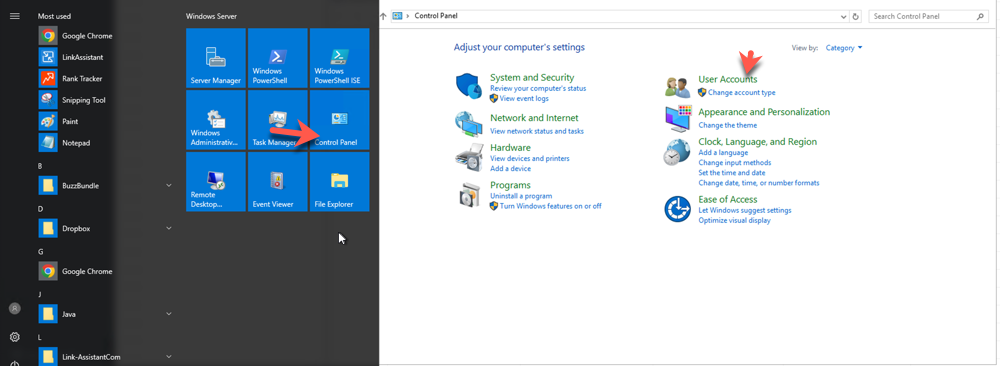
- Go to the Control Panel as per the screenshot below from the start menu of your VPS and click on Users Accounts
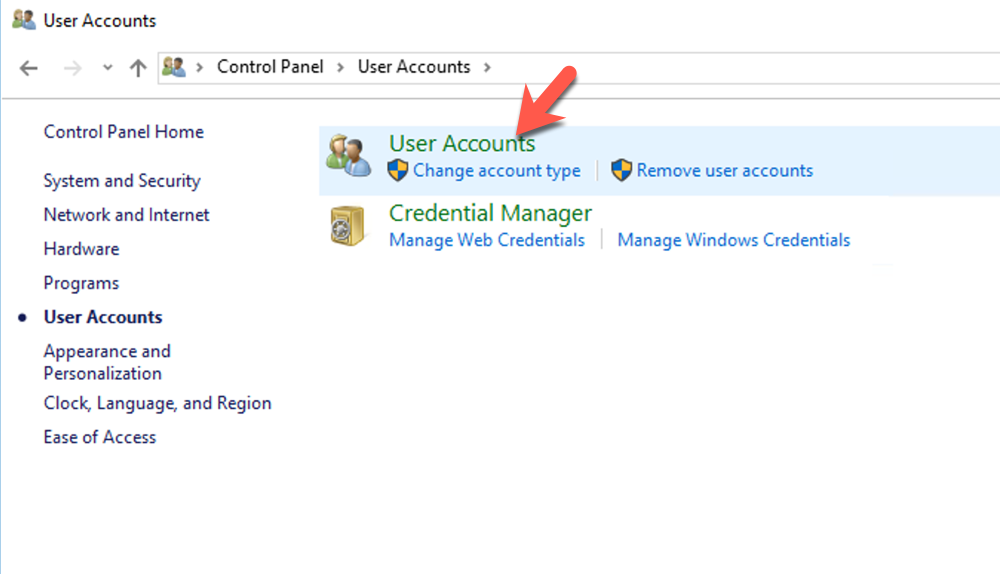
- Click on User Accounts another time
- Click on Manage Another Account
Â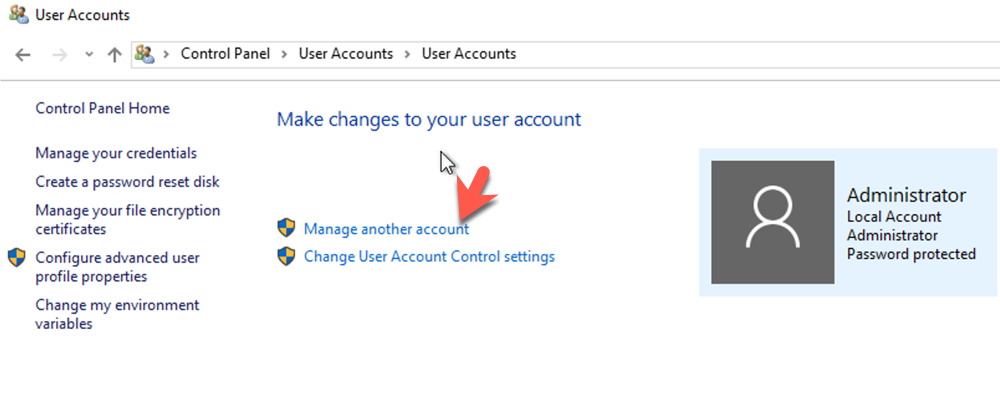
- Click on Add a User Account
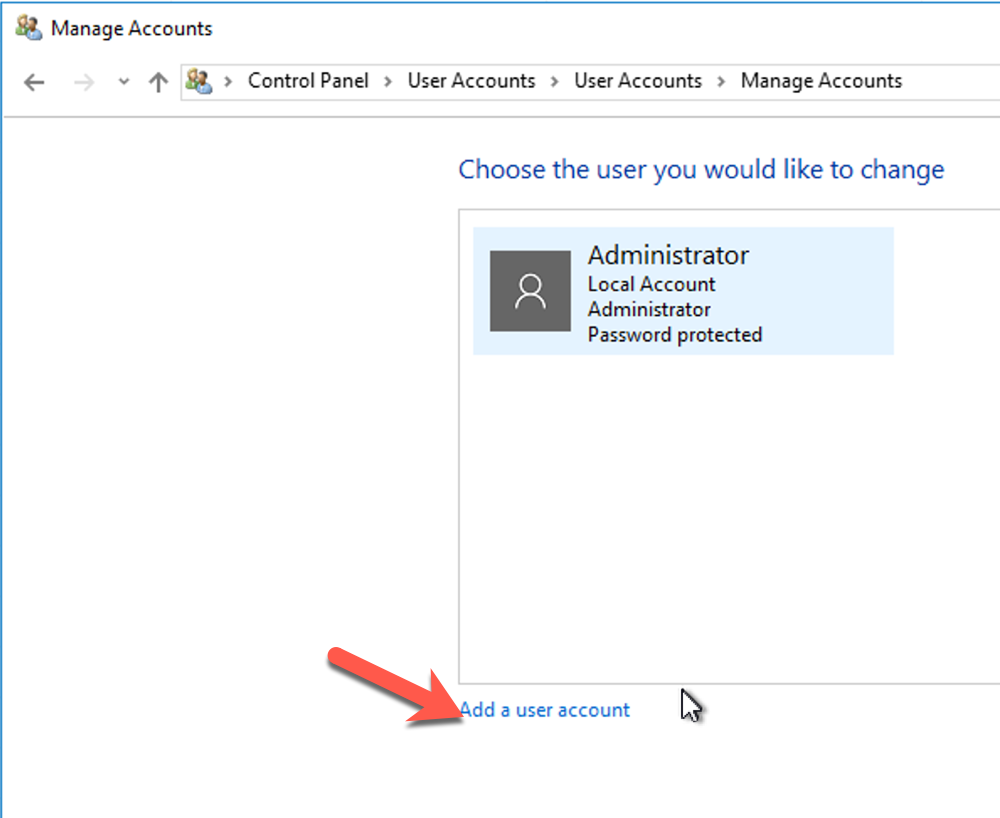
- Fill out the Requested Values with the Username / Password. They will be the new remote Desktop login.Â
Â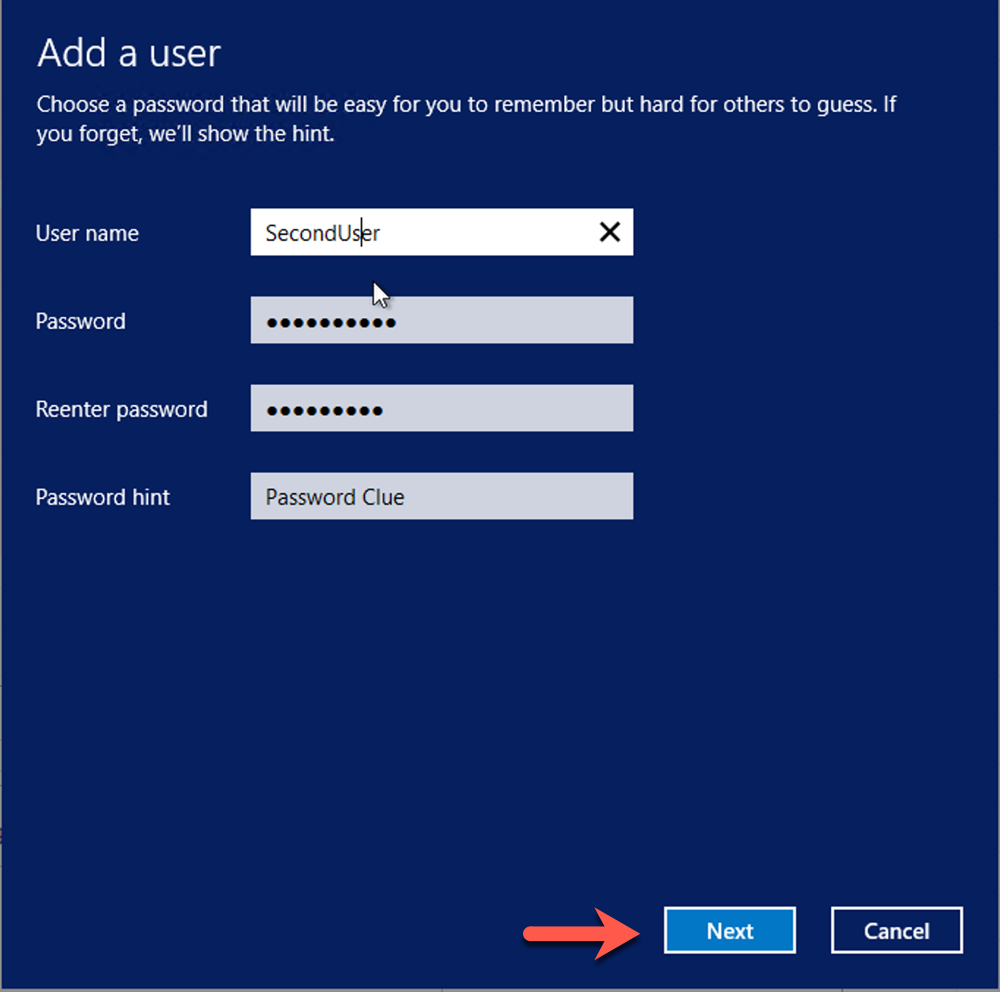
That's it, you may now login using the new user or further manage the newly created user for your Windows VPS.Â